Guide to Installing Mods on a Project Zomboid Server
This guide explains the procedure for installing mods from the Steam Workshop on a Project Zomboid server at Raznar. Installing a mod is done by registering the Workshop ID and Mod ID in the main configuration file Pterodactyl.ini.
Step 1: Open the Pterodactyl.ini File
- Open your browser and log in to the Raznar panel.
- Select your Project Zomboid server, then open the Files menu.
- Go into the
.cachedirectory, then open theServerdirectory. - Click the
Pterodactyl.inifile to open it in the editor.

Step 2: Add the Workshop ID
- Open the Project Zomboid Steam Workshop and find the mod you want to install.
- Scroll to the bottom of the mod description to find the Workshop ID information.
- Copy the Workshop ID number.

- Go back to the
Pterodactyl.inieditor in Raznar. - Find the
WorkshopItems=parameter, then paste the Workshop ID value.
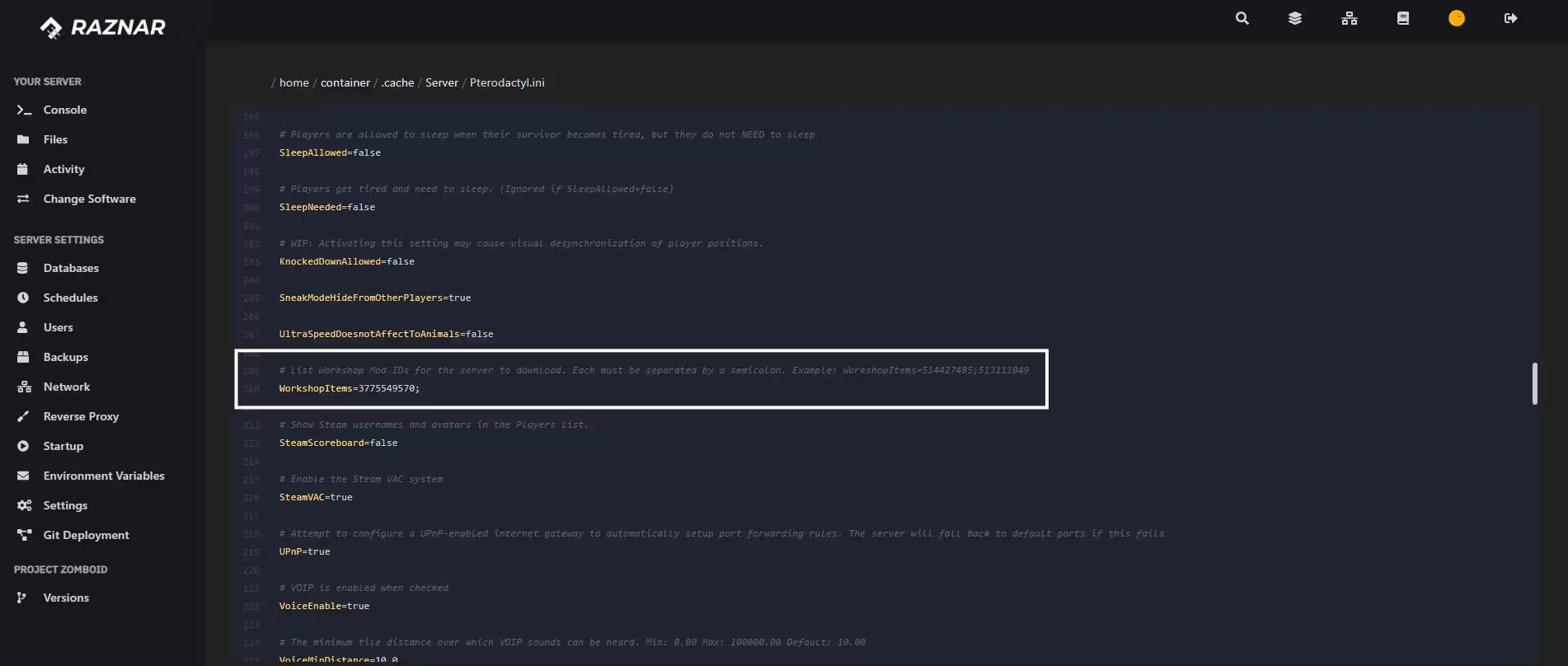
Step 3: Add the Mod ID
- On that mod's Steam Workshop page, find the Mod ID line.
- Copy the Mod ID text.

- In the
Pterodactyl.inifile, find theMods=parameter. - Paste the Mod ID value next to the
Mods=line.
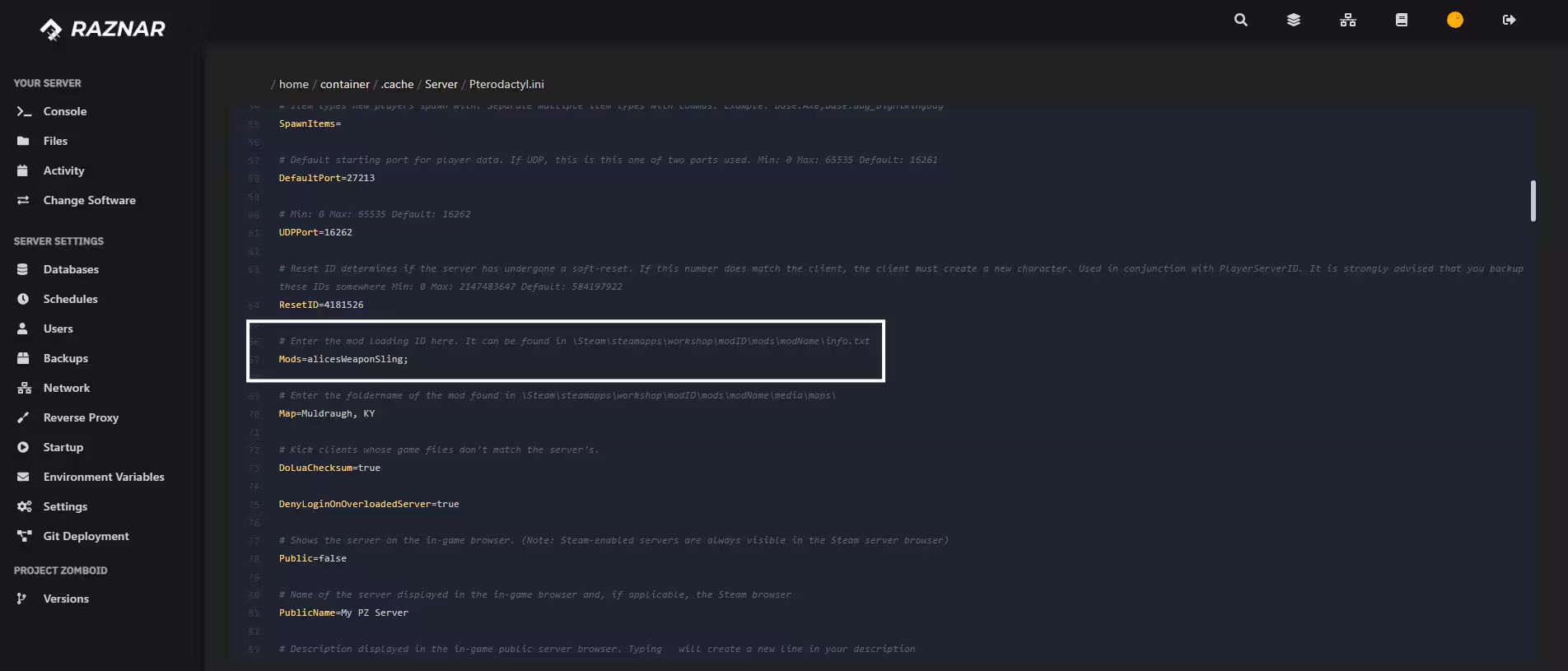
Step 4: Save and Restart the Server
- Click the Save File button in the bottom right corner of the editor.
- Open the Console menu, then click the Restart button.
- The server will automatically download the mod files from the Steam Workshop during the boot process.
CONFIGURING MULTIPLE MODS
To install several mods at once, separate each ID value with a semicolon (;) without spaces.
Example:
WorkshopItems=2196102849;2688809268;2688809269Mods=RavenCreek;ModOne;ModTwo