Guide to Exporting Project Zomboid Server Save Data to a Local Computer
This guide contains the procedure for downloading and transferring all save data from the Raznar server to a local computer (PC). This procedure is needed if you want to create an offline backup, cancel the server subscription without losing game history, or continue the adventure with friends through a local Host Co-op session.
Step 1: Stop the Server Service
- Open a browser and log in to the Raznar panel.
- Open the Console menu, then click the Stop button.
- Make sure the server status is completely inactive (Offline) to ensure database file consistency.
Step 2: Archive the Save Files on the Server
- Go into the Files menu on the Raznar panel.
- Go to the
.cachedirectory. - Inside the
.cachedirectory, you will see three main folders containing all server data:Saves/Multiplayer/Pterodactyl/: Contains all world map modifications, bases, containers, and vehicles.Server/: Contains thePterodactyl.iniandPterodactyl_SandboxVars.luaconfiguration files.db/: Contains the player account databasePterodactyl.db.
- Select those three folders (or select the
Saves,Server, anddbfolders), then click the Archive button on the panel interface to create a compressed archive file (for example:server_export.zip).
Step 3: Download the Archive File
- In the Files menu, click the options icon (
...) next to theserver_export.zipfile. - Select the Download option and wait for the download process to the local computer to finish.
DOWNLOADING LARGE FILES USING SFTP
If the archive file size is more than 100 MB, it is recommended to use an SFTP application (such as FileZilla or WinSCP):
- Open the Settings menu in the Raznar panel to view the SFTP connection details.
- Connect the FTP client to the server using your account port and credentials.
- Go into the
.cache/folder and download the archive file directly at optimal speed.

Step 4: Place the Files on the Local Computer
-
On the local computer, extract the downloaded
server_export.zipfile.
-
Open the Run window by pressing
Windows + R, then enter the command:%UserProfile%\Zomboid(Or go to
C:\Users\<Username>\Zomboid\).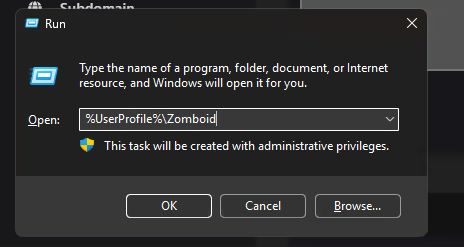
-
Place the extracted files according to the local directory structure:
A. World Save Folder
- Move the save folder from
Saves/Multiplayer/Pterodactyl/to the local directory:(You can rename the%UserProfile%\Zomboid\Saves\Multiplayer\servertest\Pterodactylfolder to the local server name you want, for exampleservertest).
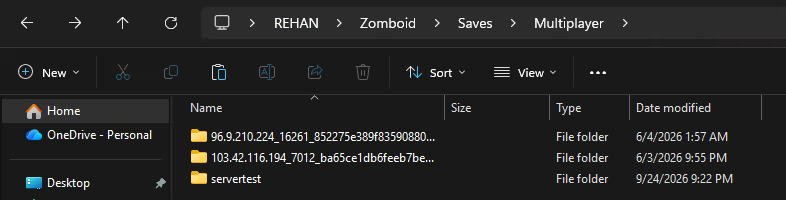
B. Configuration Files
- Copy the
Pterodactyl.iniandPterodactyl_SandboxVars.luafiles to the directory:%UserProfile%\Zomboid\Server\ - Rename the files to match your local server name:
servertest.iniservertest_SandboxVars.lua
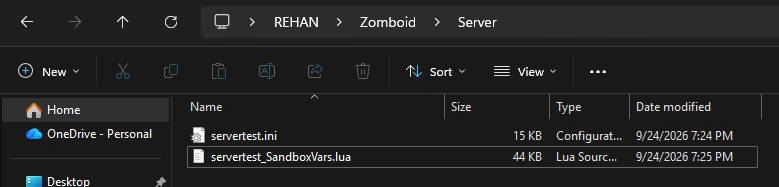
C. Player Account Database
- Copy the
Pterodactyl.dbfile to the directory:%UserProfile%\Zomboid\db\ - Rename the file to:
servertest.db

Step 5: Verify the Save in the Local Game
- Run the Project Zomboid game application on your computer.
- Select the Host menu.
- Select the server profile you have placed (for example
servertest), then click the Start button. - Enter the game world and verify that your base, building structures, vehicles, and character inventory have loaded completely.