Setting Up a New Server
This page is a follow-up after your FiveM server has been created on a Hyper Node. Here we take care of two mandatory things so the server can run:
- Making sure the game port =
30120 - Preparing the txAdmin port =
40120
A FiveM server requires 2 allocations: the game port 30120 and the txAdmin port 40120. Make sure the server's Allocation Limit is at least 2 (3 recommended) and Database Limit is at least 1 before continuing.
If the FiveM server hasn't been created yet, start here first: 👉 Creating a Server on a Hyper Node
1. Open the Server
- Log in to the panel, then select your FiveM server.
- You will enter the Console page. Here you can start, stop, and monitor the server.
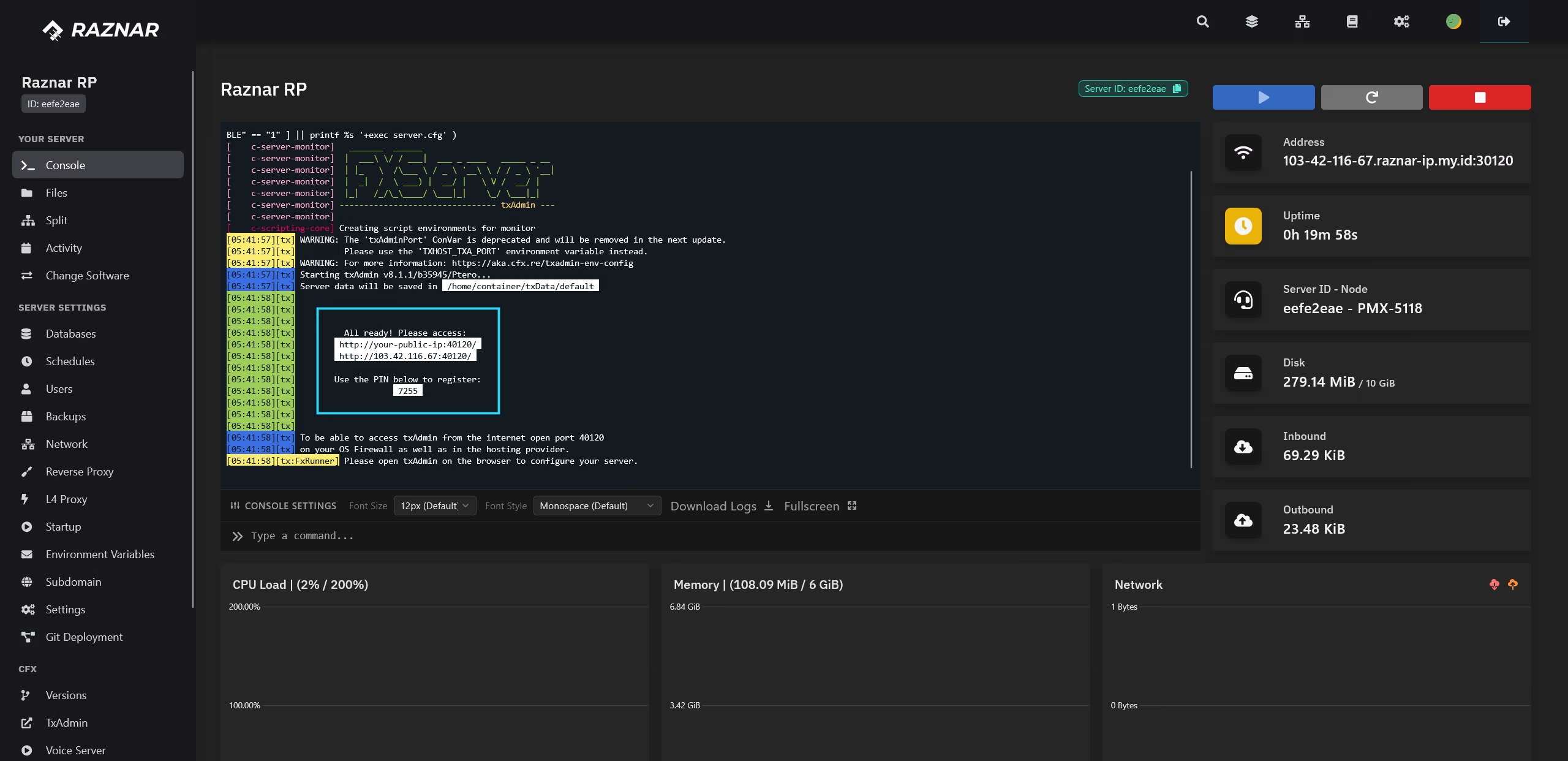
2. Set the Game Port to 30120
The FiveM game port must be 30120, otherwise players cannot connect properly.
- Open the Network menu in the left sidebar.
- Look at the list of available Allocations.
- Make sure there is an allocation with port
30120, and set it as Primary. - If it doesn't exist yet, create a new allocation with port
30120and set it as Primary. - Note the IP:Port of that allocation to be used by players when connecting.
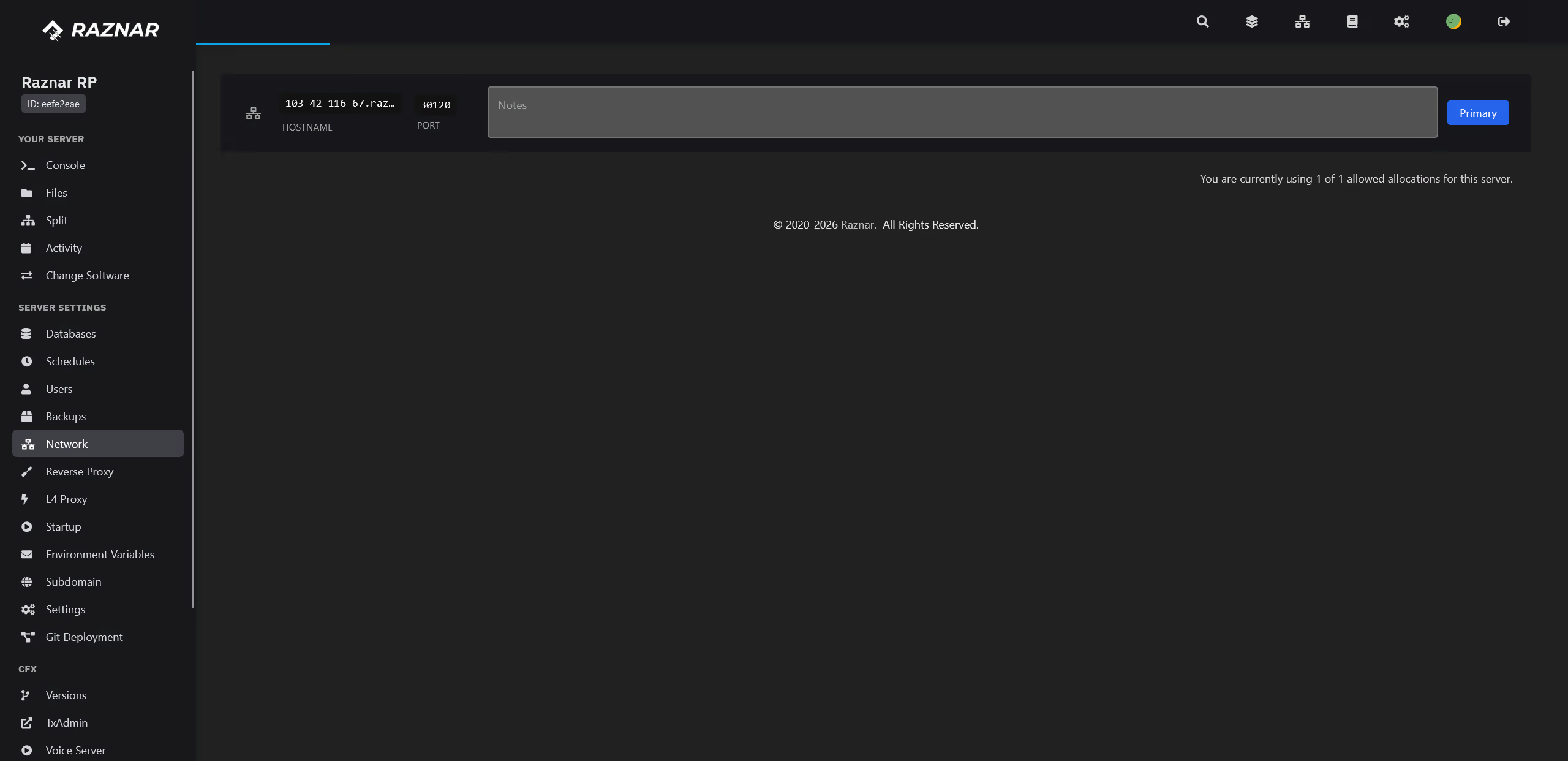
If port 30120 cannot be used, contact the Technician / Hosting Admin via a ticket for allocation assistance.
3. Set the txAdmin Port to 40120
txAdmin runs on a separate port from the game port.
- Still in the Network menu, create a new allocation with port
40120. - Note the hostname/IP along with port
40120.
Once active, txAdmin can be opened through a browser:
http://<hostname-or-ip>:40120
Example: http://game-gnl-jh2.raznar.net:40120
4. First-Time txAdmin Setup
When the server is run for the first time and txAdmin has never been configured:
- Open
http://<hostname>:40120in a browser. - Create a txAdmin admin account (username + password).
- Choose Deploy Server for a new server, or Link Existing if you are moving old data.
- Run the server.
5. Connect to the Server
Share the following address with players:
connect game-gnl-jh2.raznar.net:30120
Next Steps
- Setup PMA Voice — adds voice chat.
- Setup Database — connects the server to a database.
- Setup Cache Proxy — speeds up resource downloads.
- Import Server — moves an old server.