Setup Database
Many FiveM resources (such as frameworks, inventories, and characters) require a MySQL/MariaDB database. You can create one directly from the Databases menu in the panel, then connect it to the FiveM server through server.cfg.
The Databases menu creates the database along with its user, password, and connection string automatically — so you don't need to set up the user manually.
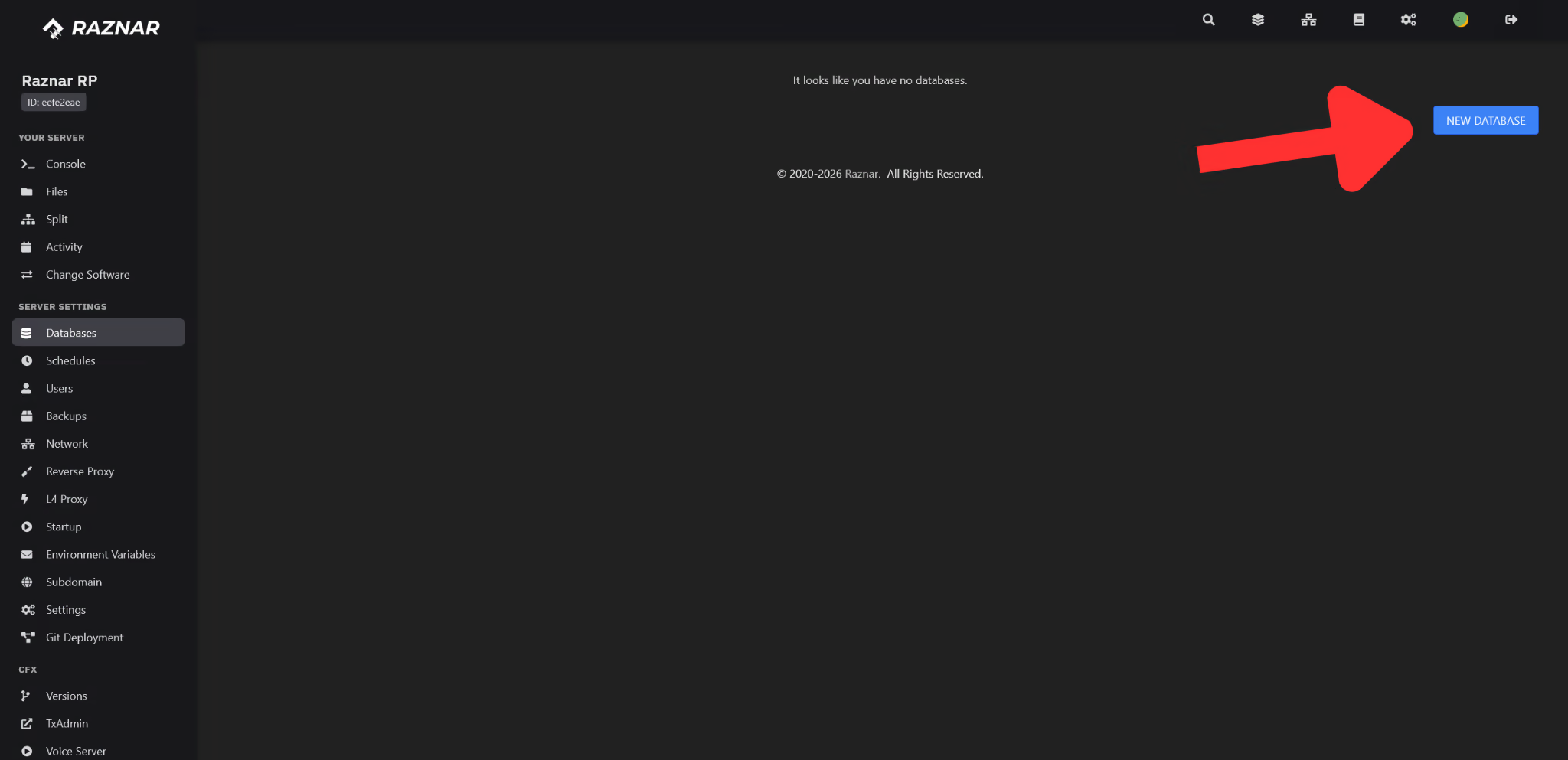
1. Open the Databases Menu
- Log in to the Game Panel, then select your FiveM server.
- In the left sidebar, open the Server Settings group.
- Click the Databases menu.
2. Create a Database
- Click the New Database button.
- Fill in the form that appears:
- Database Host → choose an available database host.
- Database Name → the database name (example:
fivem_server). Letters, numbers,_,-, and.are allowed (3–48 characters). - Connections From → leave empty to allow connections from anywhere (
%).
- Click Create Database.
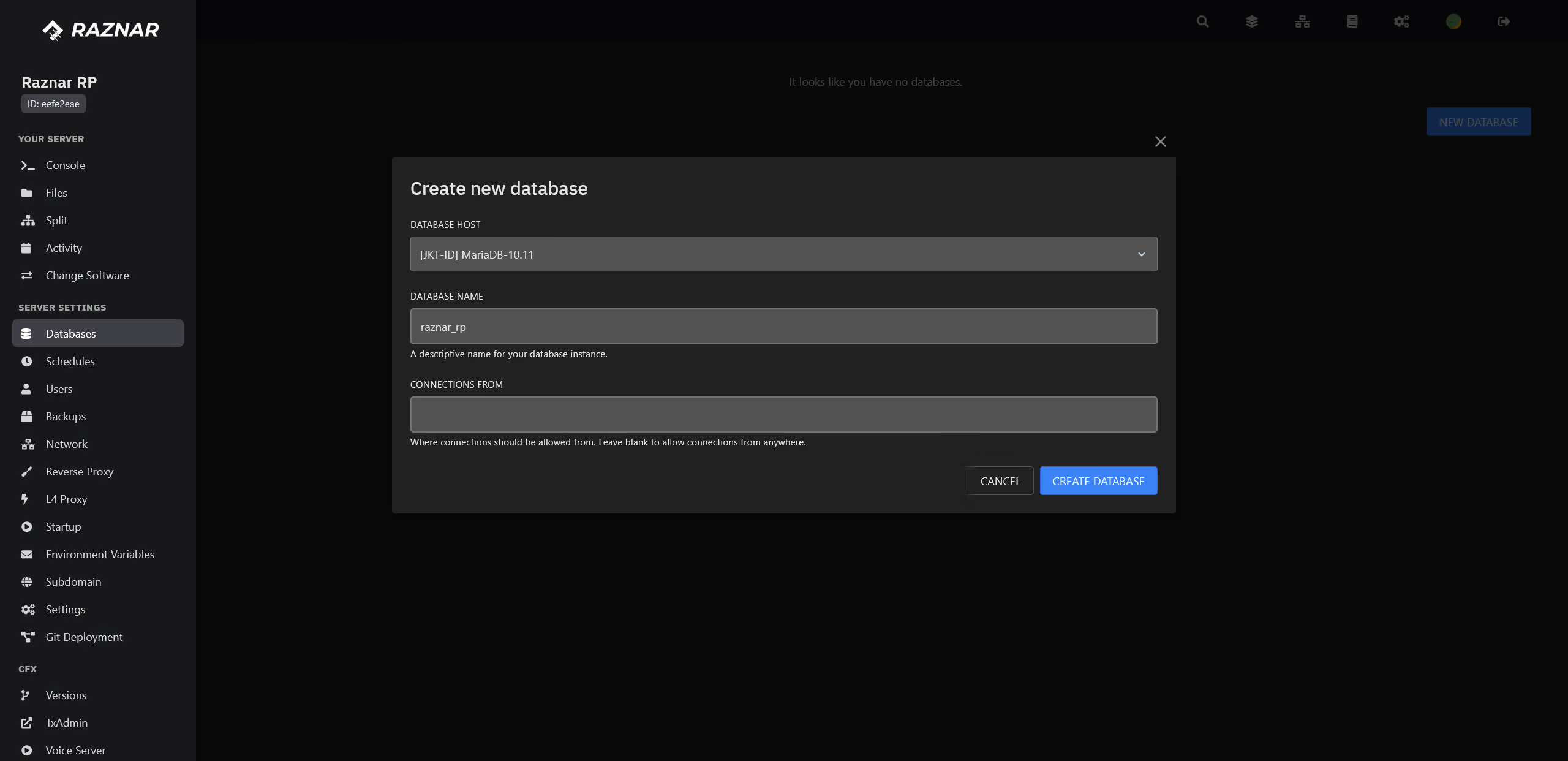
The panel automatically creates a user and password for that database.
Full guide: Databases (Control Panel).
3. Note the Database Credentials
The credentials are needed to connect the FiveM server to the database.
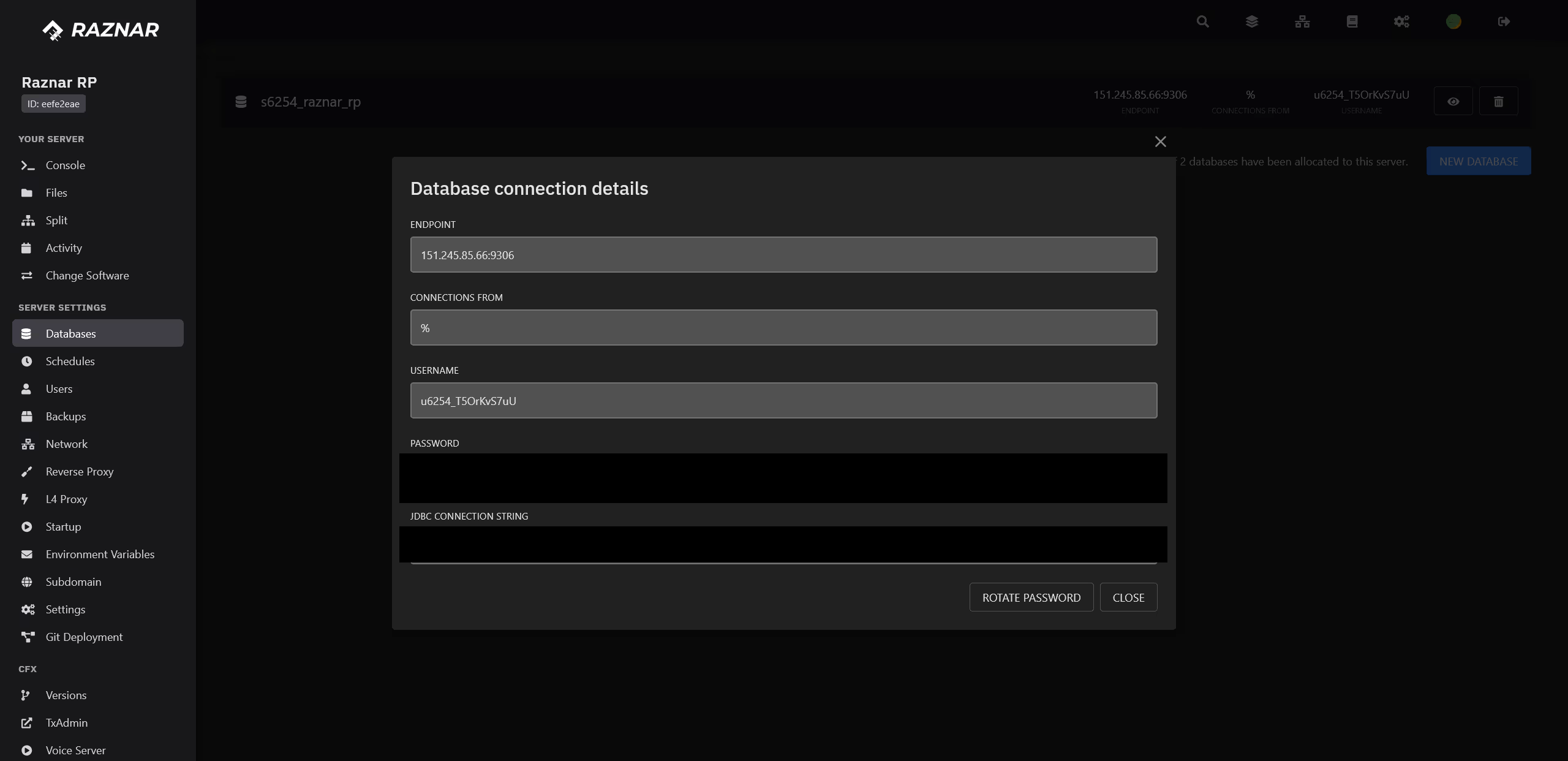
- On the database row, click the eye icon (👁).
- The Database connection details window will show:
- Endpoint → the database host address.
- Username → the database user.
- Password → the user password.
- JDBC Connection String → a ready-to-use connection string.
- Click each value to copy it.
4. Apply It to server.cfg
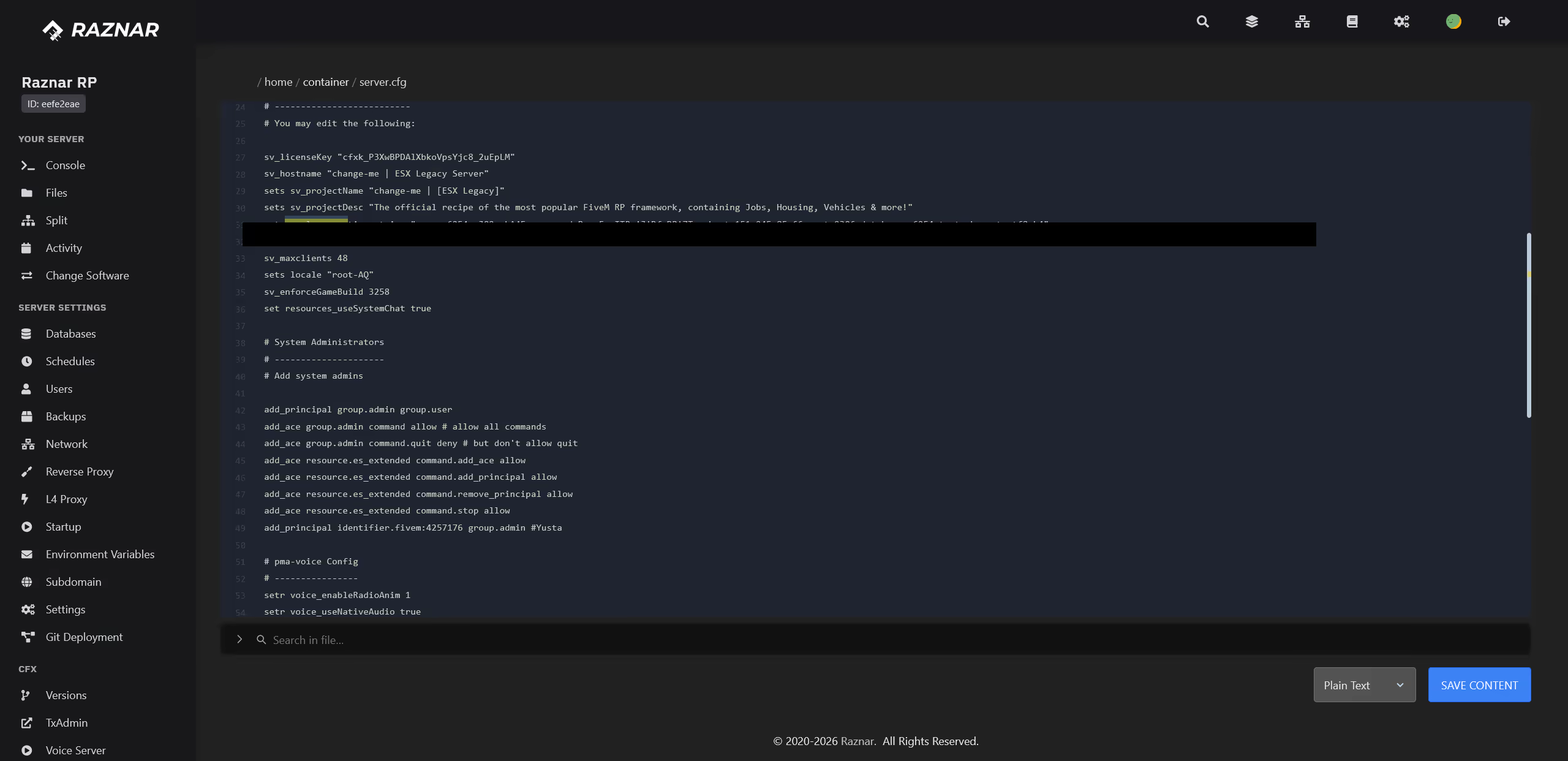
- Open the Files menu, then open
server.cfg. - Add the following connection string (
key=valueformat foroxmysql):
set mysql_connection_string "user=username_dari_panel;password=password_dari_panel;host=endpoint_dari_panel;port=3306;database=fivem_server;charset=utf8mb4"
Use the key=value format separated by ; as shown above. This format is safer if the password contains special characters such as @, :, /, #, &, =, and $, which can break the mysql://username:password@host format.
🔧 Replace:
username_dari_panel→ the Username from the panel.password_dari_panel→ the Password from the panel.endpoint_dari_panel→ the Endpoint from the panel.3306→ the database port (default3306).fivem_server→ the name of the database you created.
- Click Save Content.
5. Import the SQL Structure (If Needed)
If your resource provides a .sql file (for example install.sql or database.sql):
- Upload that
.sqlfile through the File Manager. - Run it through the database menu in the panel, or use an application such as HeidiSQL with the credentials above — see the HeidiSQL guide.
6. Restart the Server
Restart the server through the Console menu so the resource reads the new database configuration.
Don't use the same database for two different servers. Create a new database per server so the data doesn't overwrite each other.