How to Connect to the Database from the Control Panel
To connect to the database from an application such as HeidiSQL, you need credentials (host, username, password). This guide retrieves the credentials from the Databases menu in the Control Panel.
USING DATABASE GUI?
If the database and user were created through Database GUI, the password is no longer shown in the panel. Follow How to Connect to the Database from Database GUI.
A. Get the Credentials from the Control Panel
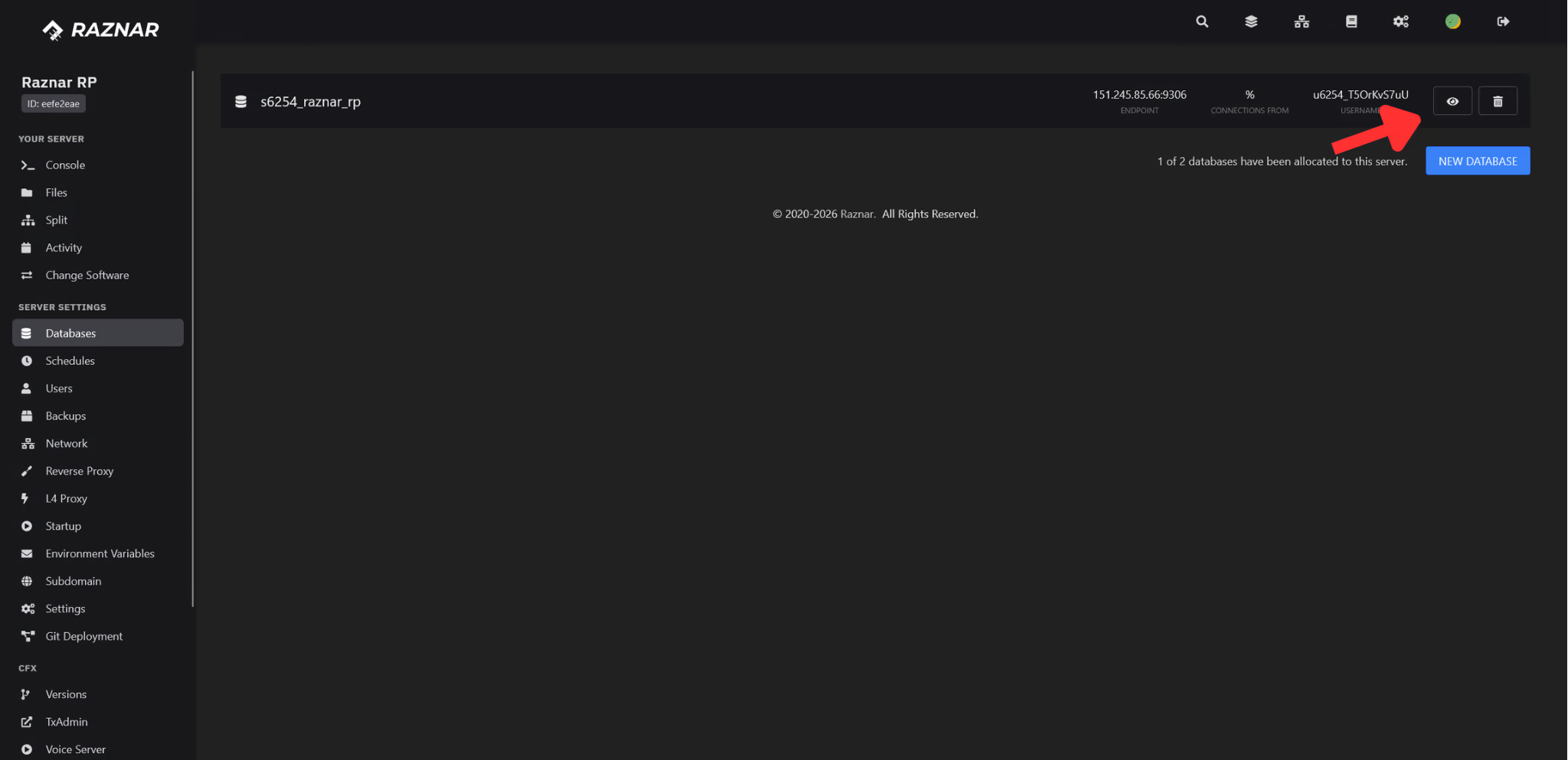
1. Open the Databases Menu
- Log in to the Game Panel, then select your server.
- In the left sidebar, open the Server Settings group.
- Click the Databases menu.
2. View the Credentials
- On the database row, click the eye icon (👁).
- The Database connection details window will show:
- Endpoint → the database host.
- Username → the database user.
- Password → the user password.
- JDBC Connection String → a ready-to-use connection string.
- Click each value to copy it.
DON'T HAVE A DATABASE YET?
If the database is still empty, create one first via the Databases menu (click Create Database) or via Database GUI:
- Databases (Control Panel) — most practical, credentials are automatic.
- Create Database — via Database GUI.
- Create User — via Database GUI.
- Grant All Access — configure access rights.
3. Required Credentials
| Field | Get from |
|---|---|
| Hostname / IP | Endpoint of the database you viewed |
| User | Username of that database |
| Password | Password of that database |
| Port | 3306 |
B. Connect with HeidiSQL
1. Install HeidiSQL
- Open the HeidiSQL download page.
- Download the latest Installer version, then install it on your computer.
2. Create a New Session
- Open the HeidiSQL application.
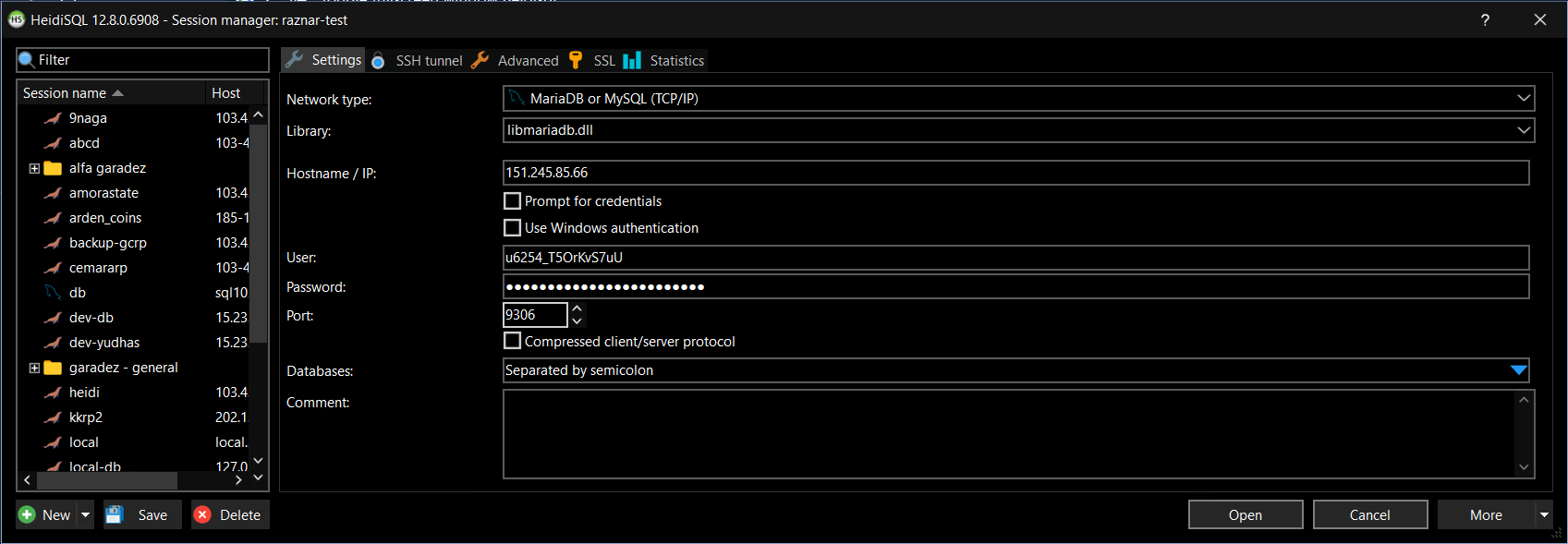
- In the lower left panel, click New to create a new session.
- Fill in the session form:
| Field | Value |
|---|---|
| Network type | MySQL (TCP/IP) |
| Hostname / IP | Endpoint of the database you opened in the panel (example: db-host.raznar.net) |
| User | Username of that database |
| Password | Password of that database |
| Port | 3306 |
- Click Save to save the session.
3. Connect
- Select the session you just created.
- Click Open (or Connect).
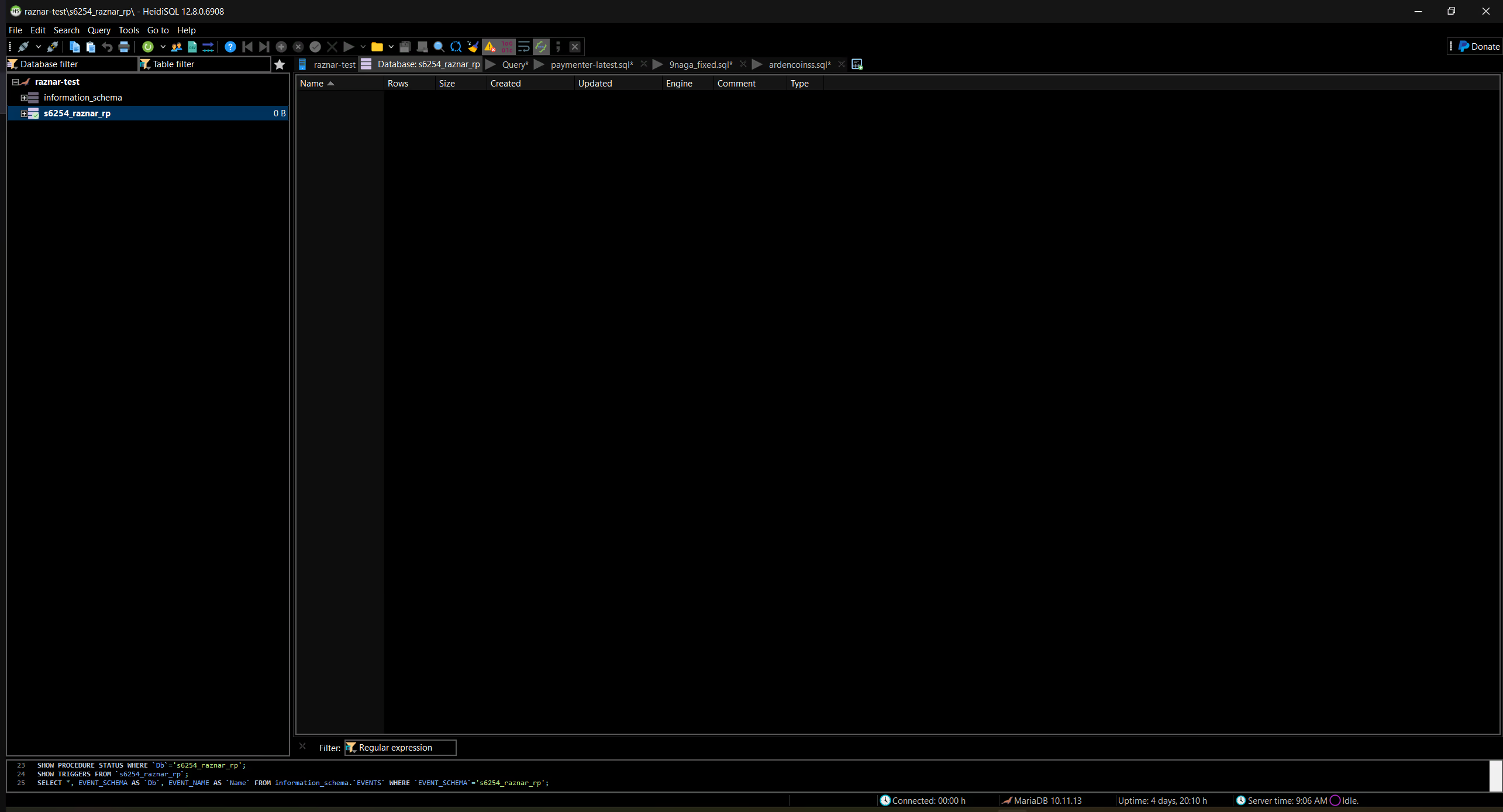
- If successful, the status at the bottom will show Connected, and the database list will appear in the left panel.
4. If the Connection Fails
- Access denied for user → recheck the username and password. Make sure the user is granted access rights via Grant All Access or use the credentials from the Databases menu.
- Can't connect to MySQL server → make sure the host (Endpoint) and port (
3306) are correct, and that your account is connected to the internet. - Unknown database → make sure the database name has been created in Create Database.
- Still failing? Contact the Technician / Hosting Admin via a ticket along with the error message that appears.