How to Connect to the Database from Database GUI
If you created the database and user through Database GUI, the credentials are no longer shown in the panel. This guide explains how to retrieve those credentials and then connect using HeidiSQL.
SAVE THE PASSWORD WHEN CREATING THE USER
The user password can only be viewed and saved when you create it. After the user is created, the password can no longer be displayed in the panel. If you forget it, you must change it via the Password button in the Users tab.
A. Get the Credentials from Database GUI
- Log in to the Game Panel, then select your server.
- In the left sidebar, open the Database menu group, then click Database GUI.
- Open the Databases tab to confirm the database name you will use.
- Open the Users tab to see the username and host (format
username@host, example:user_toko@%). - Open the Console tab to see the database host in use.
- The password is not displayed — use the password you saved when creating the user.
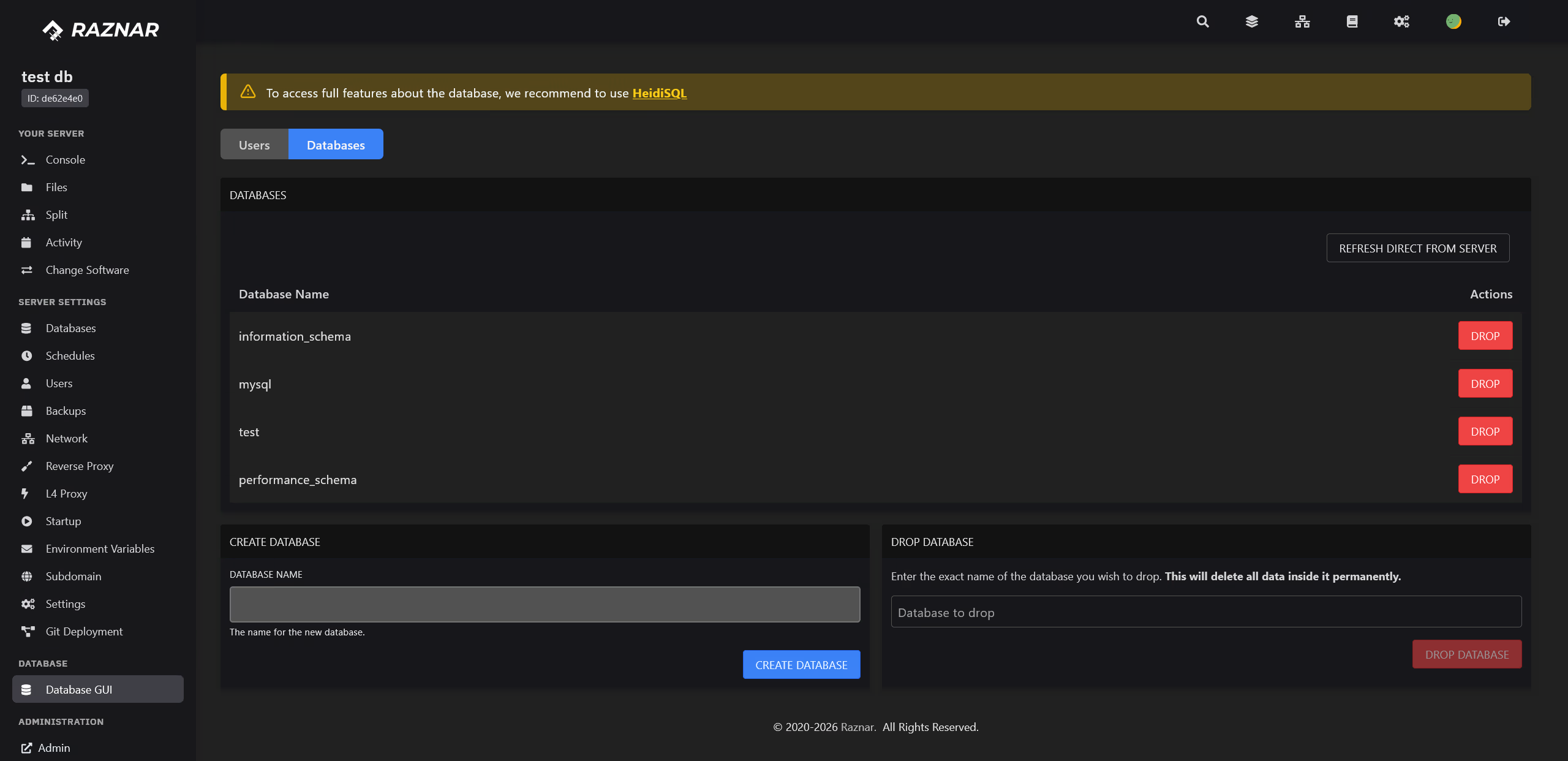
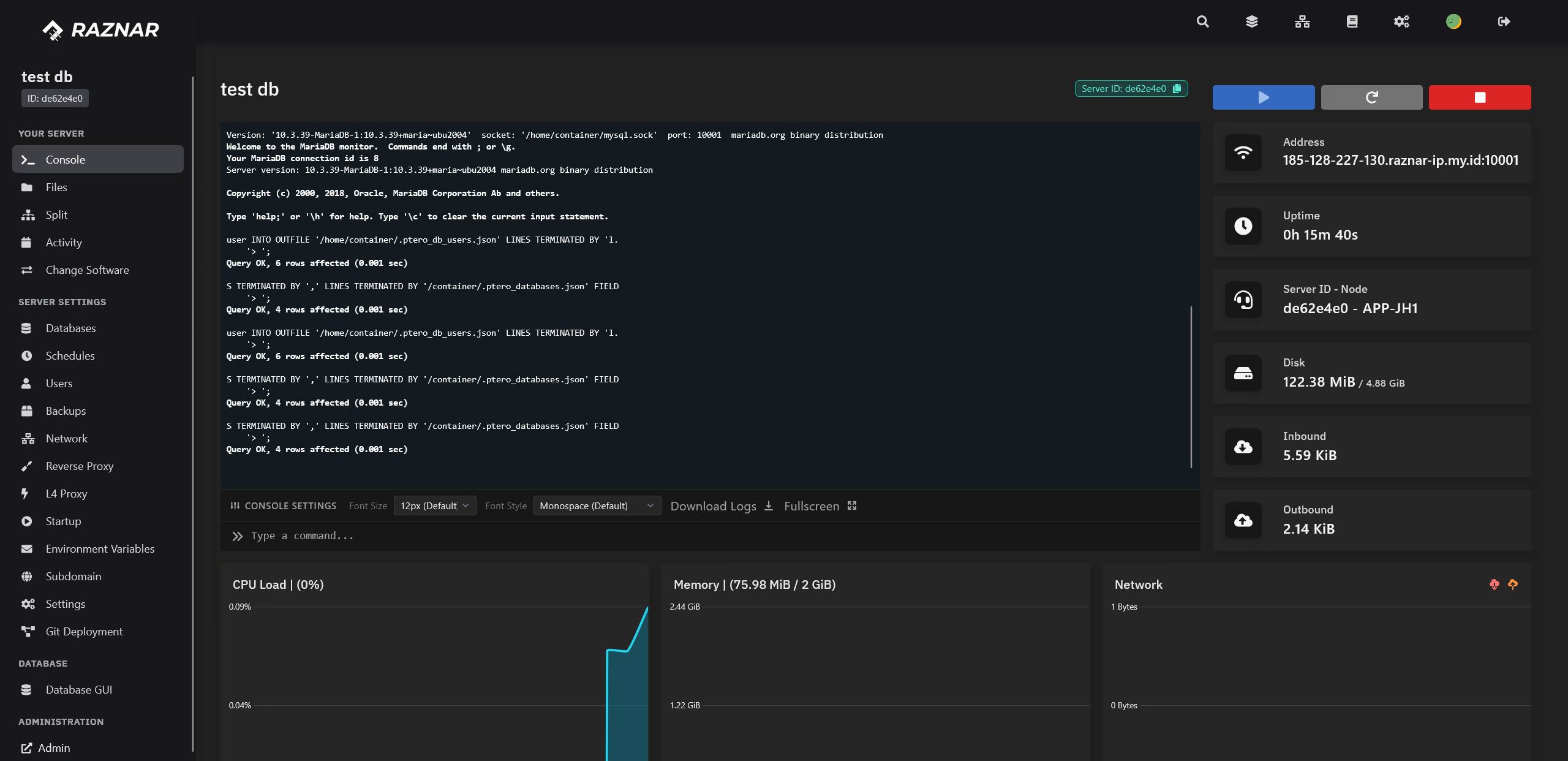
Required Credentials
| Field | Get from |
|---|---|
| Hostname / IP | See the Console in the Game Panel |
| User | Username in the Users tab (without the @host part) |
| Password | The password you saved when creating the user |
| Database Name | Database name in the Databases tab |
| Port | 3306 |
DON'T HAVE A DATABASE OR USER YET?
Create them first via Create Database and Create User, then grant access via Grant All Access.
B. Connect with HeidiSQL
- Open the HeidiSQL application. Not installed yet? See How to Connect to the Database from the Control Panel.
- In the lower left panel, click New to create a new session.
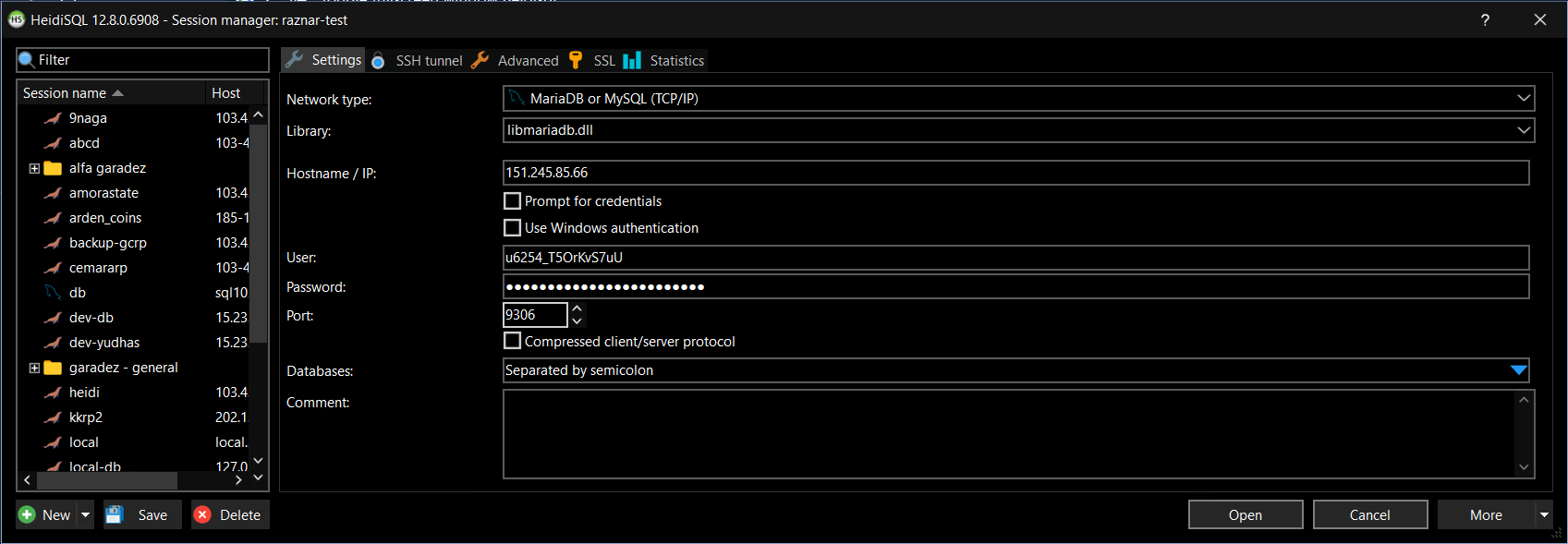
- Fill in the session form using the credential table above:
| Field | Value |
|---|---|
| Network type | MySQL (TCP/IP) |
| Hostname / IP | Host from the Console |
| User | Username from the Users tab |
| Password | The password you saved |
| Port | 3306 |
- Click Save to save the session.
- Select that session, then click Open (or Connect).
If the Connection Fails
- Access denied for user → make sure the username and password are correct, and the user has been granted access via Grant All Access. If the password is forgotten, change it via the Password button in the Users tab.
- Can't connect to MySQL server → make sure the host (Endpoint) and port (
3306) are correct, and the server is Online. - Unknown database → make sure the database has been created in the Databases tab.
- Still failing? Contact the Technician / Hosting Admin via a ticket along with the error message that appears.