How to Import / Restore a Backup
Import and restore are basically the same process: loading a backup file (.sql) into a database. The only difference is the goal:
- Import → load data from the backup file into a database.
- Restore → bring the database back to the backup's state, overwriting the current data.
The backup file usually comes from a database export or from another hosting/server.
Make sure you have connected to the database first.
WARNING — DATA CAN BE PERMANENTLY OVERWRITTEN
- If the
.sqlfile containsDROP TABLE/DROP DATABASEcommands (usually from checking Add DROP TABLE during export), tables with the same name will be dropped and replaced with the backup contents. - Back up first your active database before restoring, so the latest data is not lost.
- For a restore, the safest option is to point it to a new database, then change the application/
server.cfgconfiguration to that new database. - If you do restore into a database that already has data, clear its tables first (right-click → Drop table(s)) to avoid conflicts.
- Make sure the target database is correct. This process cannot be undone.
1. Select the Target Database
- In the left panel of HeidiSQL, click the target database so it becomes active.
- If the target database does not exist yet, create it first via How to Create a Database, or right-click the session → Create new → Database.
- Restoring into a database that already has data? Clear its tables first: select all tables → right-click → Drop table(s).
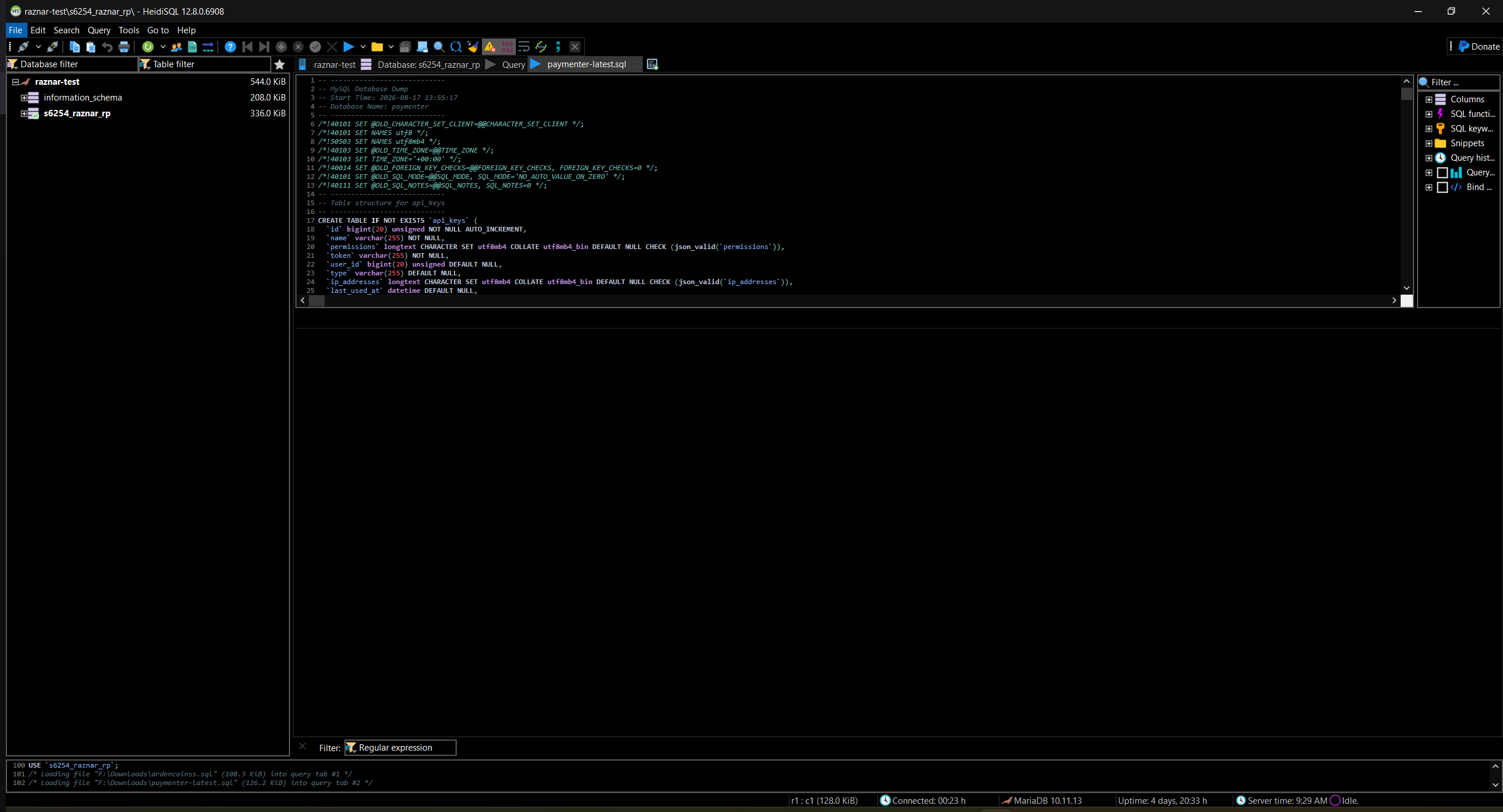
2. Run the Backup File
- Open the File menu → Run SQL file. On Windows, you can press
Ctrl + Odirectly. - Select the
.sqlfile you want to import. - HeidiSQL will display the contents of that file in the Query tab.
- Click Run (or press
F9) to run it. - Wait until the process finishes. If there are errors, read the message that appears at the bottom.
3. Verify
- Refresh the table list in the left panel.
- Open one of the tables, then check the Data tab to make sure the contents are correct.
- Run the application/server that uses the database to make sure it works normally.
LARGE FILE
For large backup files, run the import via the command line (mysql -u user -p database < backup.sql). The process is usually faster and more stable.