How to Delete a Database
If a database is no longer used, you can delete it using HeidiSQL. Make sure you have connected to the database first.
DATA WILL BE LOST PERMANENTLY
Deleting a database will permanently delete all tables and data inside it and cannot be undone. Back up first if there is still important data — see How to Create a Backup.
Method 1: Via the Menu (GUI)
- In the left panel, right-click on the database you want to delete.
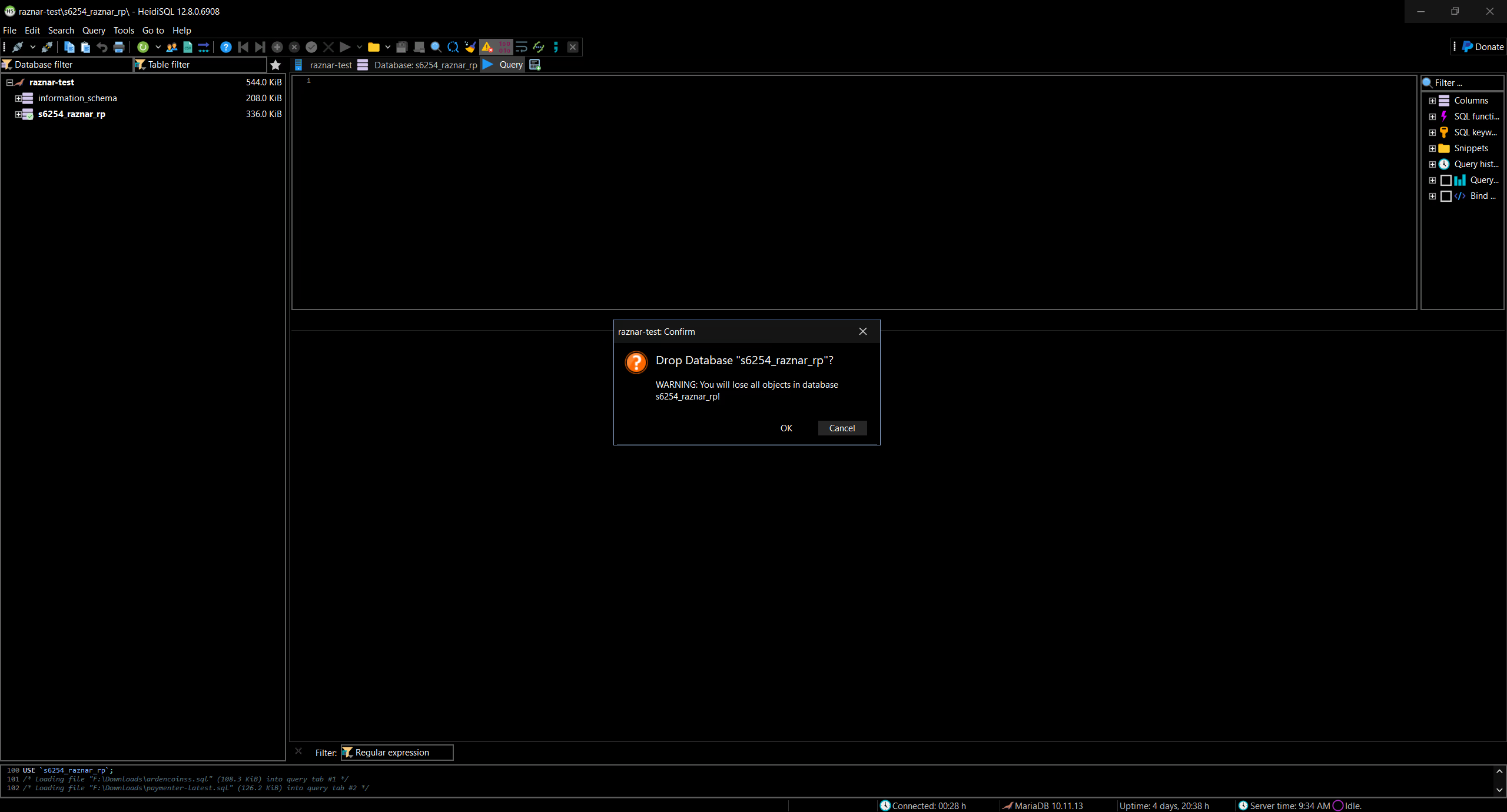
- Select Drop database.
- A confirmation will appear. Type the database name to confirm, then click Yes.
Method 2: Via an SQL Query
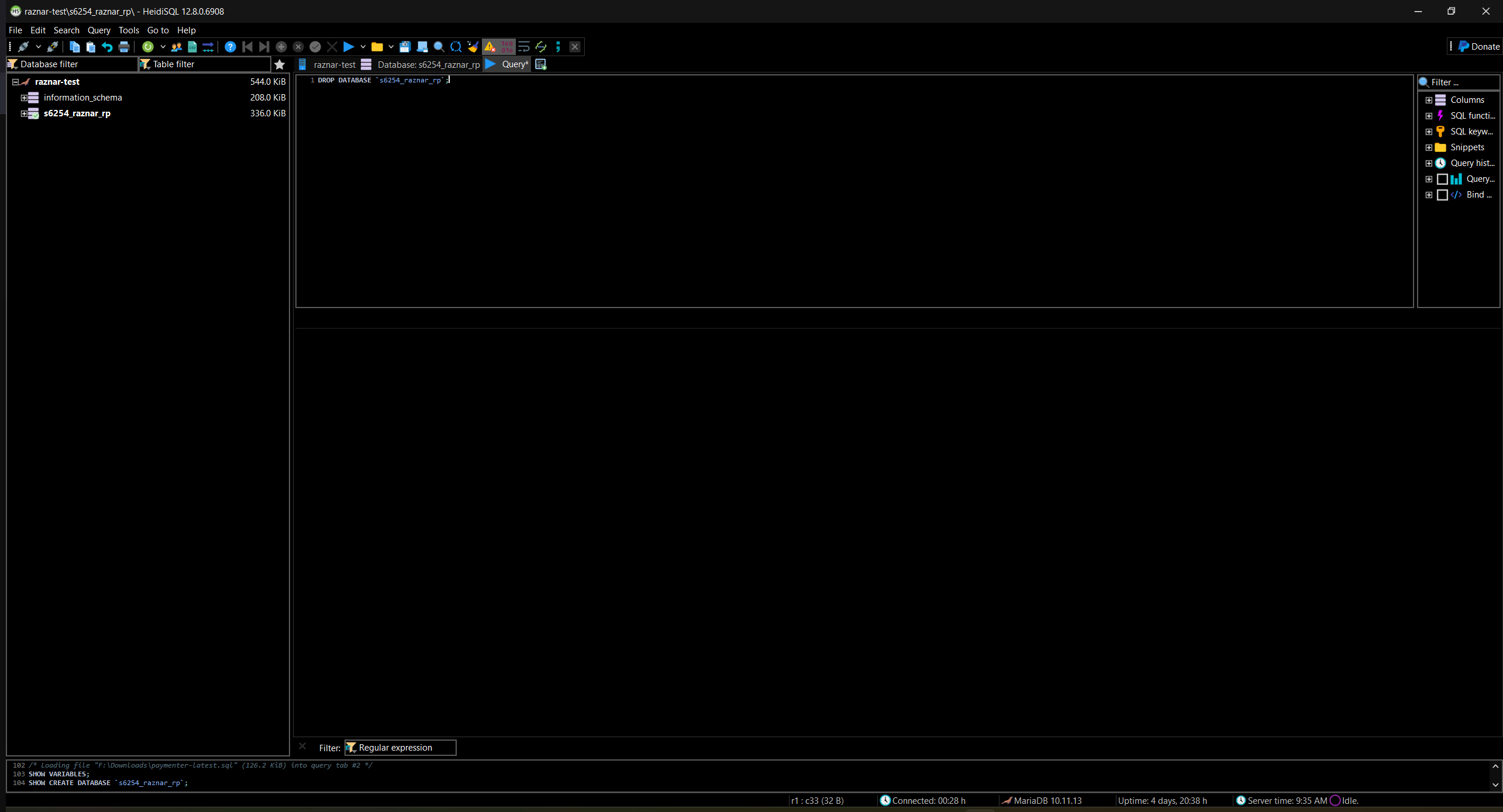
- Open the Query tab.
- Run the following command (replace the database name with yours):
DROP DATABASE `db_toko`;
- Click Run (or
F9). - The database and all of its contents will be deleted.
tip
If you only want to delete certain tables (not the whole database), right-click on the table then select Drop table(s).