Introduction to Database
Raznar provides several ways to manage your MySQL/MariaDB database. All of them can be accessed from the server's Control Panel. This page summarizes the available options.
1. Databases (Most Practical)
The Databases menu creates the database along with the user, password, and connection string automatically. It is suitable if you just need a ready-to-use database.
👉 Databases (Control Panel) — create, view credentials, change password, and delete a database.
2. Database GUI (Manual Control)
The Database GUI feature gives you more detailed control: creating databases, creating your own users, and configuring access rights (privileges) manually.
The Database GUI feature is only available on a dedicated database server, not on a regular game server.
👉 Introduction to Database GUI
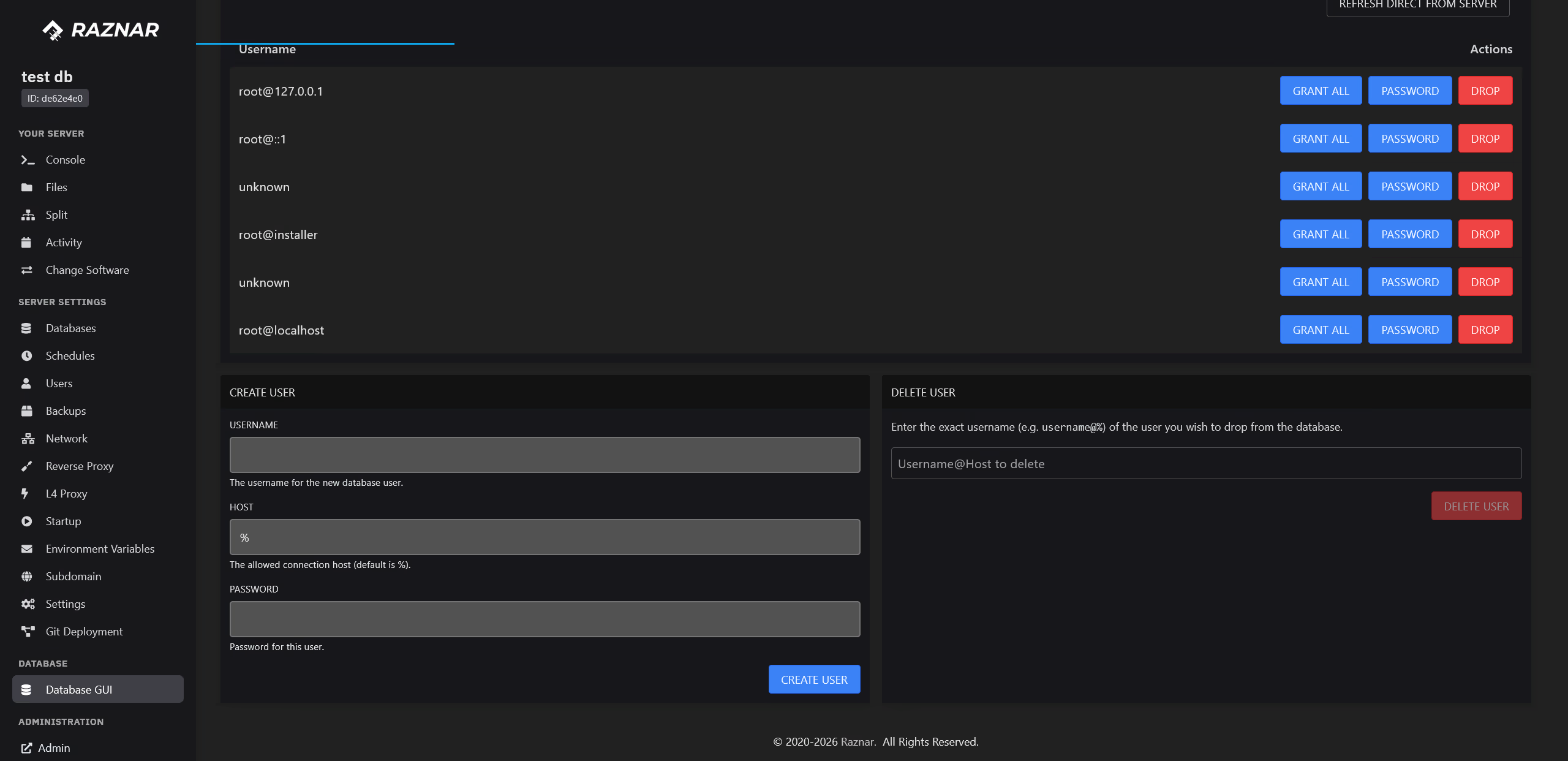
Both of these menus are inside your server panel, in the Database / Server Settings menu group in the sidebar.
3. HeidiSQL (Desktop Application)
For advanced needs such as connecting, import/export, backup, restore, and running queries directly, use the HeidiSQL application with the credentials from the panel.
👉 HeidiSQL
- How to Connect to the Database from the Control Panel
- How to Connect to the Database from Database GUI
- How to Create a Database
- How to Create a Backup
- How to Import / Restore a Backup
- How to Delete a Database
Required Credentials
To connect an application/server to the database, prepare:
- Host / Endpoint — the database address (from the Databases menu in the panel).
- Port —
3306. - Username — the database user.
- Password — the user password.
- Database Name — the database name.
The complete credentials can be viewed via the eye (👁) button in the Databases menu.