Guide to Migrating and Importing a Project Zomboid Server
This guide contains the procedure for transferring and importing Project Zomboid server data from a local computer (Host Co-op) or another hosting service to the Raznar server panel. This procedure covers moving the entire world structure, bases, vehicles, game rule configuration, as well as player account and character data.
Main Project Zomboid Server File Structure
Project Zomboid server storage is divided into three main directory components:
-
World Save Files
- Store map modification data, player-built structures, vehicles, container inventories, and world population (
map_*.bin,chunkdata_*,vehicles.db,players.db). - Local PC Path:
C:\Users\<Username>\Zomboid\Saves\Multiplayer\<ServerName>\ - Raznar Server Path:
.cache/Saves/Multiplayer/Pterodactyl/
- Store map modification data, player-built structures, vehicles, container inventories, and world population (
-
Server Configuration Files
- Store the Steam Workshop mod list, sandbox settings, and server password.
- Local PC Path:
C:\Users\<Username>\Zomboid\Server\(<ServerName>.iniand<ServerName>_SandboxVars.lua) - Raznar Server Path:
.cache/Server/(Pterodactyl.iniandPterodactyl_SandboxVars.lua)
-
User Database and Credentials
- Store player account authentication data, passwords, and administrative access status.
- Local PC Path:
C:\Users\<Username>\Zomboid\db\<ServerName>.db - Raznar Server Path:
.cache/db/Pterodactyl.db
Server Naming Standardization
On a local computer, the server generally uses the default name servertest (or the name specified when creating the host session).
On the Raznar panel, the server name is Pterodactyl by default.
Rename the files and directories from the old server to Pterodactyl before uploading them to the Raznar server so the system can directly load the files without needing to modify the panel's initialization variables.
Step 1: Stop the Server Service
- Open a browser and log in to the Raznar panel.
- Select your Project Zomboid server, then open the Console menu.
- Click the Stop button and make sure the server is fully Offline.
The file transfer process must be performed while the server is inactive to prevent corruption of the database files and map chunks.
Step 2: Prepare the Files from the Local Environment
-
On the local computer, press the
Windows + Rkey combination to open the Run window. -
Enter the following command, then press Enter:
%UserProfile%\Zomboid(Or open the
C:\Users\<Username>\Zomboid\directory through File Explorer).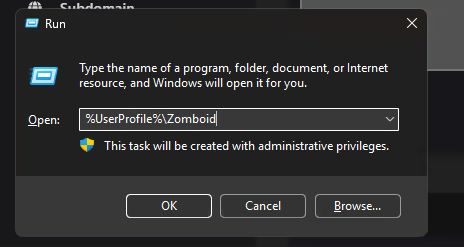
-
Prepare and adjust the naming of the following components:
A. World Save Directory
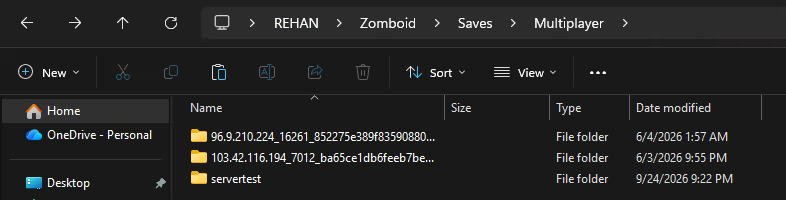
- Go into the
Saves>Multiplayerdirectory. - Find the folder for your old server name (for example
servertest). - Rename that folder to
Pterodactyl.
B. Configuration Files
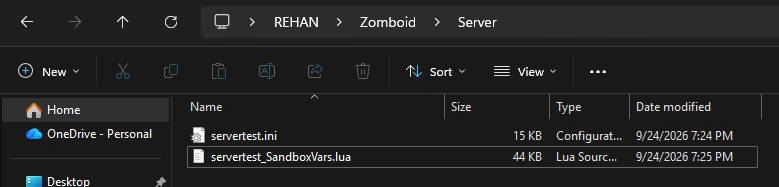
- Return to the main
Zomboiddirectory, then open theServerdirectory. - Find the
<ServerName>.iniand<ServerName>_SandboxVars.luafiles. - Rename the files to:
Pterodactyl.iniPterodactyl_SandboxVars.lua
C. Database File
- Return to the main
Zomboiddirectory, then open thedbdirectory. - Find the
<ServerName>.dbfile (for exampleservertest.db). - Rename the file to
Pterodactyl.db.

Step 3: Archive the Files (ZIP)
A Project Zomboid world save can contain tens of thousands of map chunk files. Uploading individual files can potentially cause transmission failures.
-
Create a temporary folder on the local computer, for example
zomboid-migration. -
Arrange the renamed files into the following directory structure:
zomboid-migration/
├── Saves/
│   └── Multiplayer/
│       └── Pterodactyl/          <-- World map files
├── Server/
│   ├── Pterodactyl.ini           <-- Main configuration and mods
│   └── Pterodactyl_SandboxVars.lua
└── db/
    └── Pterodactyl.db            <-- User account database
-
Compress the folder into a
.ziparchive format.
Step 4: Upload and Extract on Raznar
- Log in to the Raznar panel, then open the Files menu.
- Go into the
.cachedirectory. - Click the Upload button, then select the
.zipfile you prepared. - Once the upload process is complete, click the options icon (
...) on the archive file, then select Unarchive. - The files will be extracted and overwrite the relevant directory paths:
.cache/Saves/Multiplayer/Pterodactyl/.cache/Server/Pterodactyl.ini&Pterodactyl_SandboxVars.lua.cache/db/Pterodactyl.db
- Delete the
.zipfile after the extraction process is complete to optimize server disk space.
If the save file size exceeds the web browser upload limit (generally above 100 MB), use an SFTP client such as FileZilla or WinSCP:
- Open the Settings menu in the Raznar panel to view the SFTP connection details (Host, Port, and Username).
- Connect using your Raznar account credentials.
- Upload and manage files directly in the
.cache/directory.

Step 5: Run the Server and Verify
- Open the Console menu in the Raznar panel.
- Click the Start button to initialize the server.
- The server will validate the world data and download the mods listed in the configuration file.
- Wait until the console shows a successful initialization confirmation:
SERVER STARTED - Open the Project Zomboid game on your computer, select the Join menu, enter the server IP and Port, then perform a connection test to make sure the base, vehicle, and character data is complete.
Handling Post-Migration Issues
1. Player Character Does Not Load (Prompted to Create a New Character)
- Cause: In Project Zomboid multiplayer mode, character progress is tied directly to the account Username in the
players.dbandPterodactyl.dbdatabases. - Solution: Make sure that when connecting, players enter a username identical (including uppercase and lowercase letters) to the account used on the old server.
2. "Workshop items on the server differ from the clients" Error Notification
- Cause: A mod version difference between the server and the client computer due to a recent update from the Steam Workshop.
- Solution: Close the game application, update the mods on the local Steam client, restart the Raznar server, then reconnect.
3. Map Structure Mismatch or Broken Base
- Cause: The world save folder path was not placed correctly, or the directory name does not match the panel server name (
Pterodactyl). - Solution: Make sure the directory structure is at
.cache/Saves/Multiplayer/Pterodactyl/and contains themap_t.bin,map_ver.bin, andchunkdata_*.binchunk files.