How to Install the Pterodactyl Panel
Installing Pterodactyl (both the Panel and Wings) manually from scratch can be very troublesome. That is why we will use the community's official Auto-Installer Script.
With this script, you only need to run a command, answer a few questions, and the system will install everything automatically!
Before running the installation commands below, make sure your VPS is running a clean (Fresh Install) operating system.
Do not use a VPS that already has a web server or another panel installed, such as Apache, Nginx, XAMPP, CyberPanel, or aaPanel. Those applications will compete for network access (Ports 80 and 443) with Pterodactyl, which will cause the installation to fail.
If your VPS already has many applications installed, please Reinstall the OS from your VPS Panel menu before continuing.
⚠️ Required Preparation (MUST READ!)
The installation process will FAIL COMPLETELY if you have not done these two things in your domain settings:
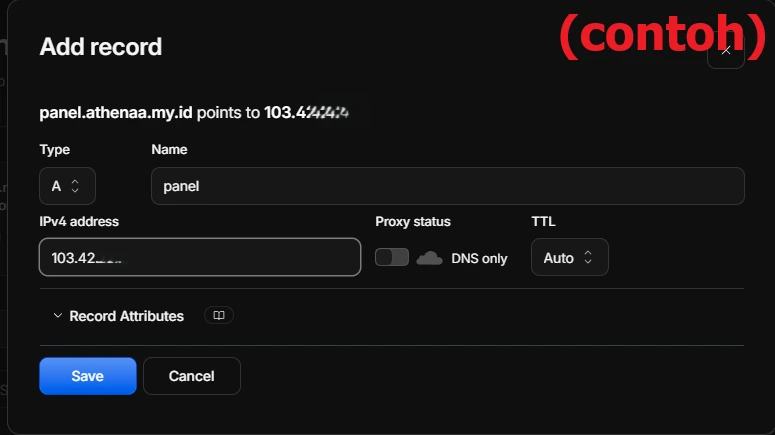
- Create an A Record for the Subdomain: Go to where you bought your domain (or Cloudflare if your DNS is pointed there). Create a new DNS record of type A Record. Enter the subdomain name (for example:
panel) and point it to your VPS IP Address. - Disable the Cloudflare Proxy: If you use Cloudflare, make sure the proxy status for that subdomain is turned off (grey / DNS Only). This is absolutely required so the script can verify the IP and create a security certificate (SSL). You may only turn it back on (orange cloud) AFTER the Pterodactyl installation is 100% complete.
Step 1: Run the Auto-Installer
Open a Terminal or VS Code and make sure you are connected as root. Type the command below and press Enter:
curl -o install.sh https://pterodactyl-installer.se
Then continue installing Pterodactyl
bash install.sh
Step 2: Configure the Web Panel
After the script runs, you will enter an interactive question-and-answer session. Follow the filling guide below in the order shown on screen:
- Select Installation Type: Type 2 (the Install both the panel and wings option), then press Enter.
- Panel Version: Type 1 (the v1 stable option), then press Enter. Do not choose v2 because it is still experimental.
- Database & Password: Press Enter repeatedly in this section to use the automatic settings.
- Timezone: Type Asia/Jakarta, then press Enter.
- Email Address: Enter your active email address for the SSL certificate (Let's Encrypt) requirement.
- Set up Admin Account: Create an account to log in to the Panel. Enter the Email, Username, Name, and Password. (Important: the password must be at least 8 characters!)
- FQDN (Panel URL): Type your full subdomain address (for example: panel.yourdomain.com). Make sure there are no typos!
- Firewall (UFW): Type Y so the script configures port permissions automatically.
- HTTPS (Let's Encrypt): Type Y so the panel is secure and accessible via https://.
- HTTPS Request Agreement: When the system asks for permission "I agree that this HTTPS request is performed", type Y.
- Telemetry Data: When asked "Enable sending anonymous telemetry data?", just press Enter (yes).
- Final Confirmation: The system will show a summary of your settings. Type Y for "Continue with installation?" to start the installation process.
During the Panel installation process, the Terminal will pause and ask for consent: "You must agree in order to register with the ACME server. Do you agree?".
Simply type Y and press Enter to agree.
Step 3: Configure the Machine (Wings)
After the panel installation is complete, the terminal will ask: "Do you want to proceed to wings installation?". Type Y and follow this guide:
- User for database hosts: Type Y to set up a user automatically for the database.
- External MySQL Access: Type N (No) for security so the database cannot be attacked from outside the VPS.
- Database host username: Press Enter to use the default username (pterodactyluser).
- Database host password: Fill in any password as long as you remember it.
- Proceed with installation?: Type Y to confirm the Wings installation.
Step 4: Connect the Panel and Wings (Node Setup) Your Wings machine and Web Panel are installed, but they are not connected to each other yet. Follow this final step:
- Open your browser and visit your panel address (Example: https://panel.yourdomain.com). Log in using the Admin account you created in Step 2.
- Click the Settings (gear) icon in the top-right corner to enter Admin Control.
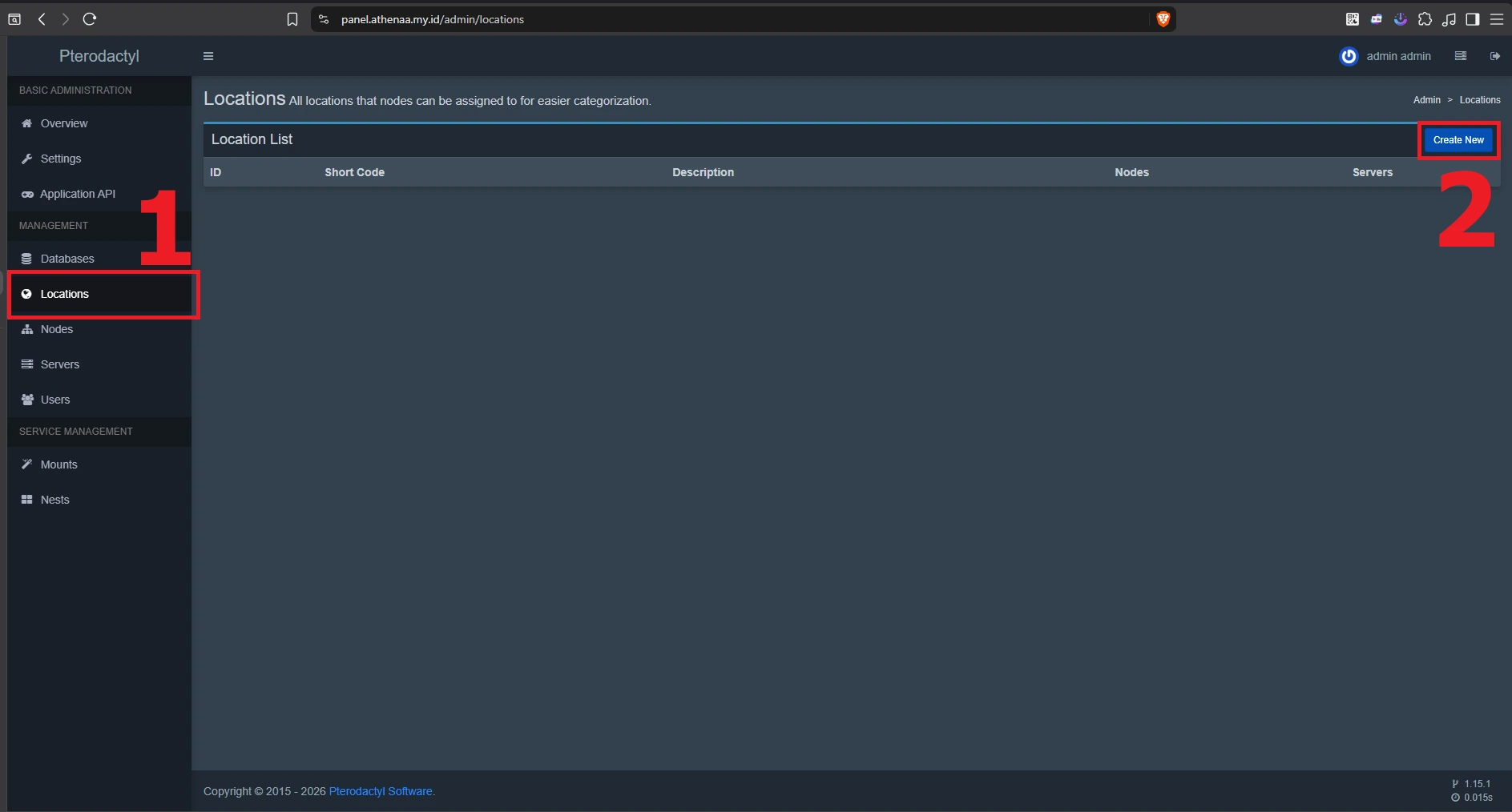
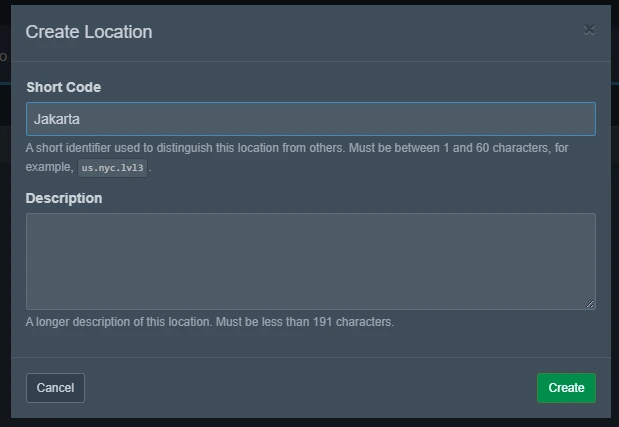
- Open the Locations menu in the left sidebar, click Create New. Give the location a name (for example: Jakarta), then click Create. Open the Nodes menu, click Create New.
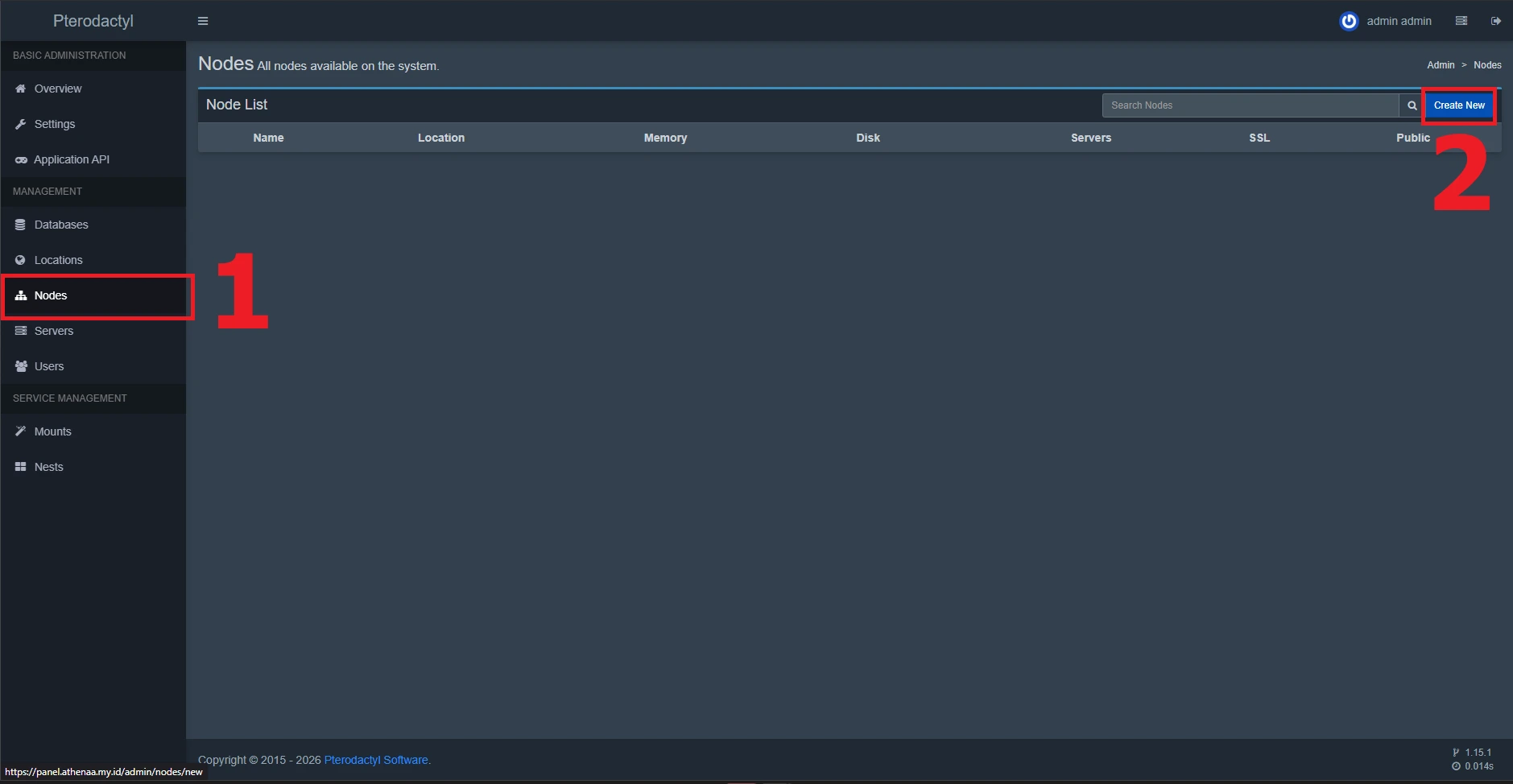
Fill in the following settings:
- Name: Anything (for example: Node-1).
- Location: Select the location you just created.
- FQDN: Enter exactly your subdomain (for example: panel.yourdomain.com).
- Communicate Over SSL: Make sure the Use SSL Connection option is checked.
- Total Memory & Disk Space: Adjust to your needs (LEAVE AT LEAST 1GB for the system).
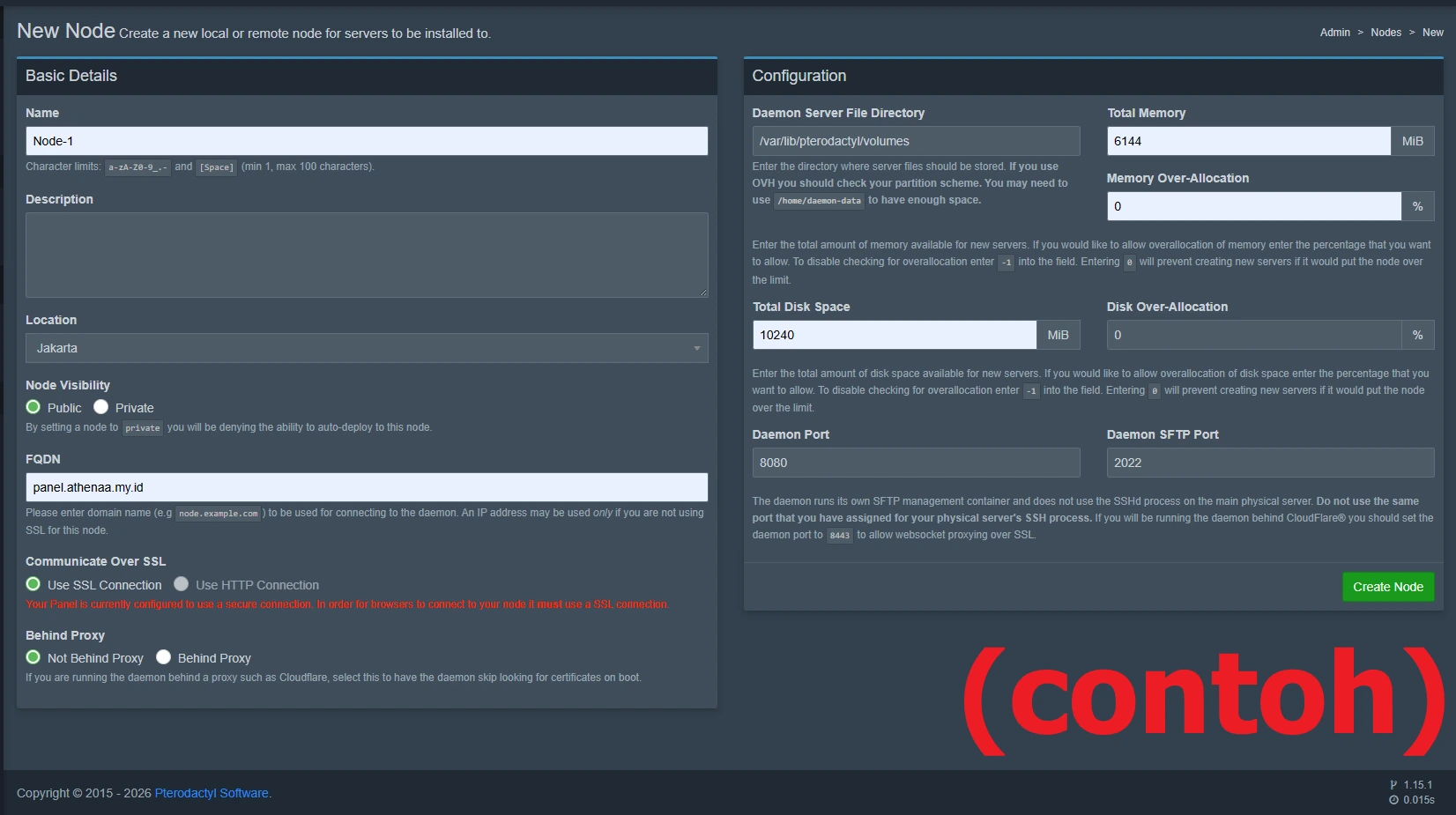
- Click the green Create Node button.
- After the Node is created, click the Configuration tab on that Node's page.
- Click the Generate Token button in the configuration code box (the code starting with sudo wings configure...) to copy it.
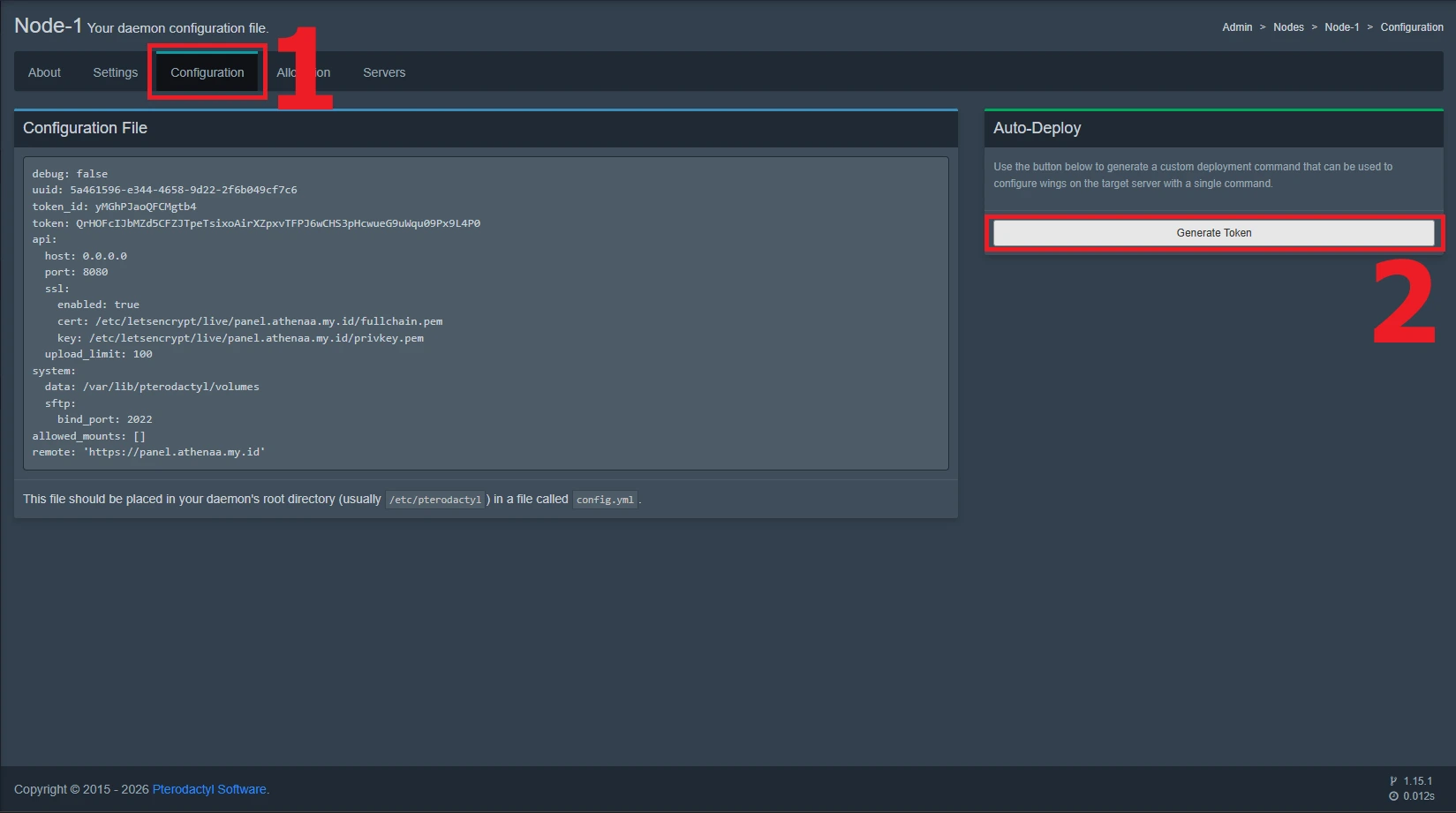
- Go back to the VPS Terminal, paste that code, then press Enter.
- Finally, run this command in the Terminal to start Wings permanently in the background:
systemctl enable --now wings

Go back to your Pterodactyl Panel page and open the Nodes menu. If the heartbeat indicator is Green, congratulations! Your server is fully active and ready to use.