How to Access a Linux VPS via SSH (Terminal)
Step 1: Prepare the Login Details from Your Email
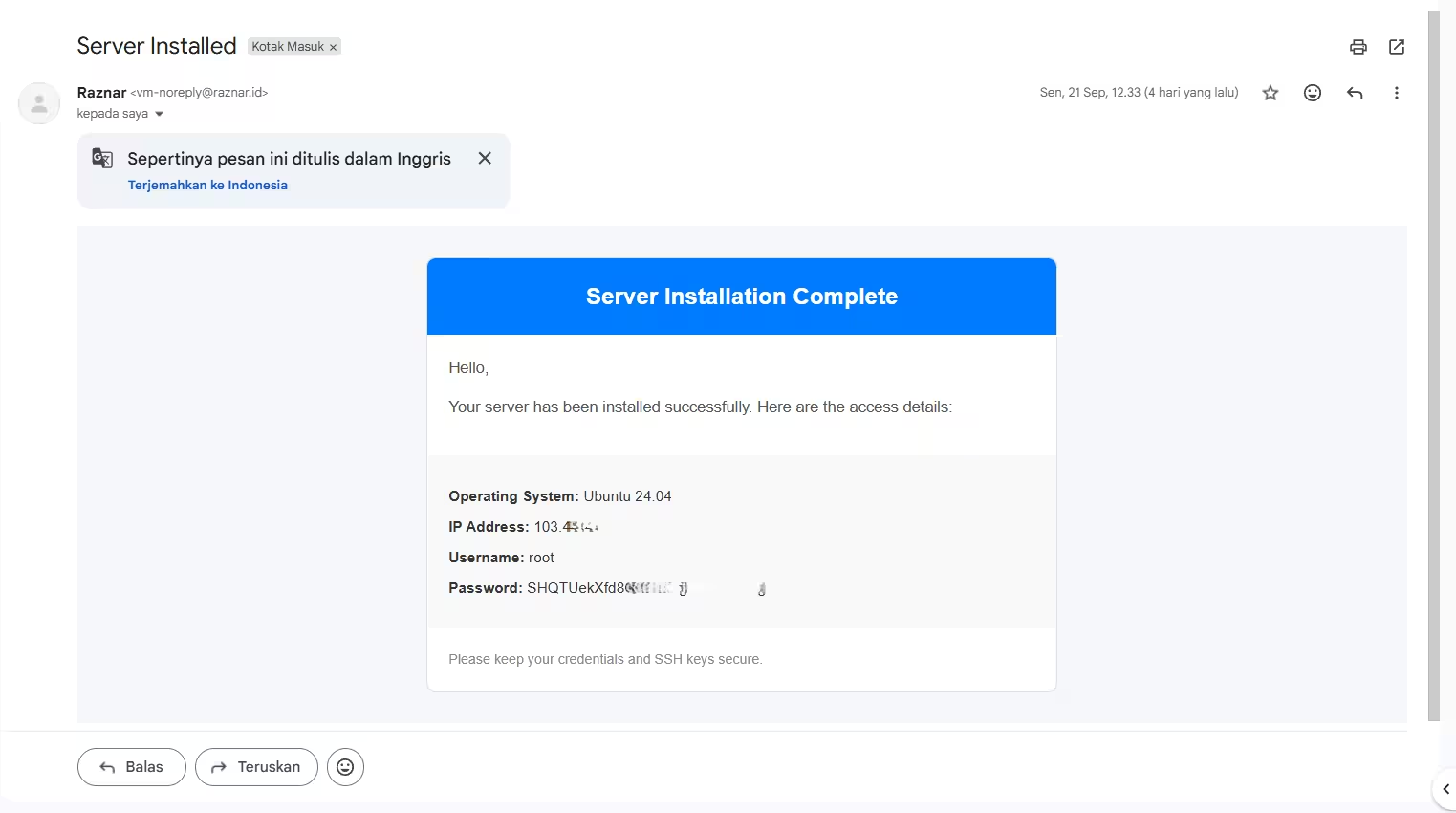
After Linux is installed and your VPS is active, the system will automatically send the server details to your email address. Open that email and note these 3 important things:
- IP Address: The series of numbers for your server address (Example:
103.45.678.90). - Username: The main system user (usually
root). - Password: A random password generated by the system.
Step 2: Open the Terminal Application on Your PC/Laptop
- Windows users: Press the
Windows(Start) key on your keyboard, type cmd or PowerShell, then press Enter. - Mac / Linux users: Open the application search, type Terminal, then open the application.
Step 3: Start the SSH Connection
- In the black Terminal screen, type a command in the format
ssh username@ip_address. Example: If the IP from your email is103.45.678.90, type: Press Enter.
First login only
A security warning will appear saying "Are you sure you want to continue connecting (yes/no/[fingerprint])?". Type yes then press Enter.
Step 4: Enter the Password
- The Terminal will ask you to enter the password, for example:
[email protected]'s password:
- Type or paste (paste) the password from your email.
IMPORTANT: THE PASSWORD IS NOT VISIBLE!
When you type or paste a password in the Terminal, the screen will not show any letters or asterisks at all.
This is not an error or lag; it is a standard Linux security feature so your password cannot be seen by others. Keep typing your password correctly until you finish, then press Enter.