How to Access & Edit VPS Files Using VS Code
Tired of looking at a plain black-and-white Terminal? Or frustrated because editing code files directly in the Terminal is difficult?
You can use Visual Studio Code (VS Code)! By adding a single extension, your VS Code can become both a File Manager and a Terminal for your VPS.
Here is the complete guide on how to connect it:
Step 1: Preparation & Install the Extension
- Make sure you have installed the Visual Studio Code application on your PC/Laptop. If not, download it from code.visualstudio.com.
- Open the VS Code application.
- Go to the Extensions menu (the squares icon in the left menu, or press
Ctrl + Shift + X).

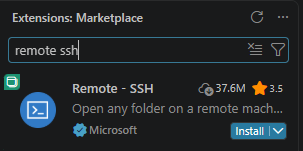
- In the search field, type Remote - SSH.
- Select the extension named Remote - SSH (the one whose developer is Microsoft), then click Install.
Step 2: Add the VPS Server
- After the extension is installed, look at the bottom-left corner of your VS Code screen. There will be a new green/blue icon (the
><icon). Click that icon.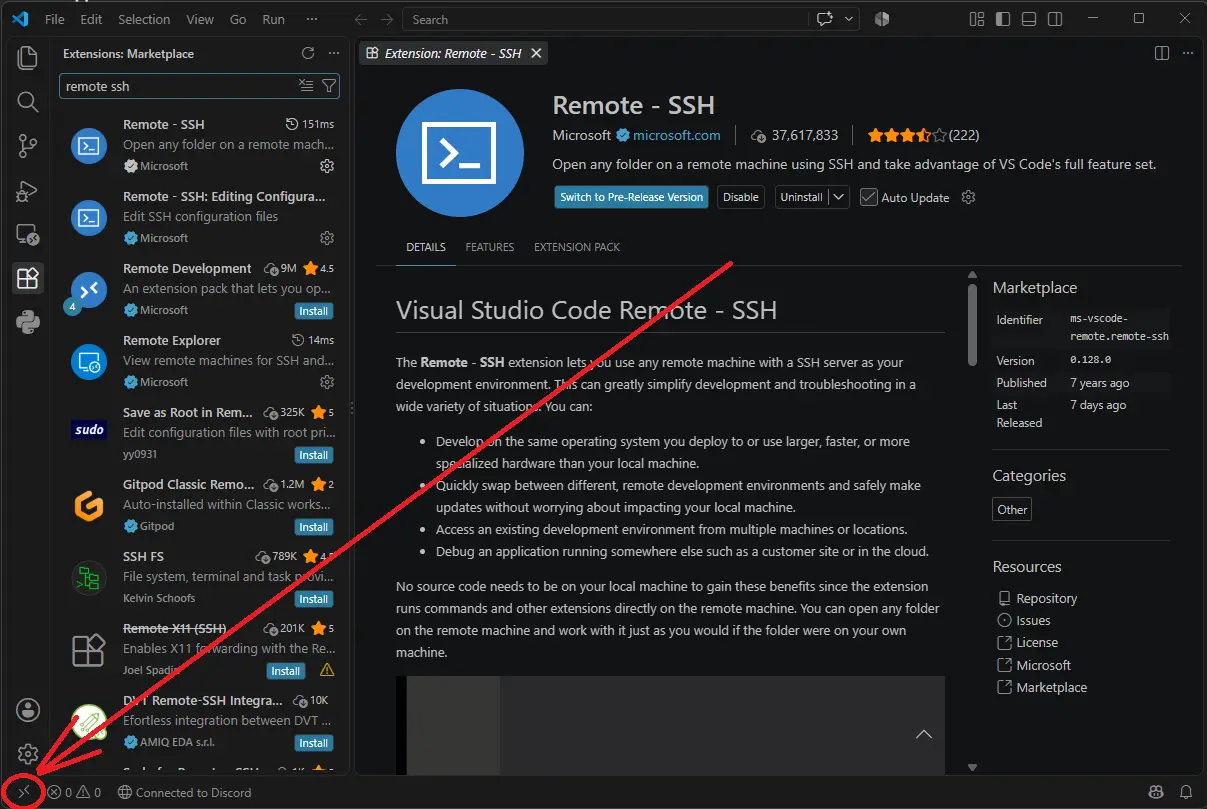
- A dropdown menu will appear at the top center of the screen. Select Connect to Host..., then select + Add New SSH Host...


- Enter your server's SSH command exactly as you would when logging in through a normal Terminal.
Example:
ssh [email protected]then press Enter.
- VS Code will ask where you want to save this configuration. Choose the first option that appears.

- A small notification will appear in the bottom-right corner saying Host added. Click the Connect button.

Step 3: Log In to the VPS
- VS Code will open a new window (screen) to process the connection.
- If asked for the server Platform type, select Linux.

- If a Fingerprint verification question appears (Are you sure you want to continue?), select Continue.
- Finally, VS Code will ask for a password. Enter your VPS Password (the one you received by email), then press Enter.

(Note: Sometimes VS Code takes a while at this stage because it is installing a small server inside your VPS).
Step 4: Open the File Manager
You are connected now! It is time to bring your VPS files onto the main screen:
- In the left menu of VS Code, click the Explorer icon (the two-document icon at the very top).
- Click the blue Open Folder button.
- In the top search box, VS Code will usually take you to your home folder automatically, which is
/root/. Just click OK. - VS Code will ask you to enter your VPS Password one more time.
- Done! All your VPS files and folders will now appear in the left pane.
WANT TO OPEN A TERMINAL TOO?
You no longer need to open a separate CMD or Terminal application! Inside VS Code, simply click the Terminal menu at the very top of the screen, then select New Terminal (or press Ctrl and ` together). Your VPS Terminal will open directly at the bottom of the screen!