How to Access Your VPS
Just subscribed to a VPS and not sure how to access it? Follow this guide.
Check the Server in the Dashboard
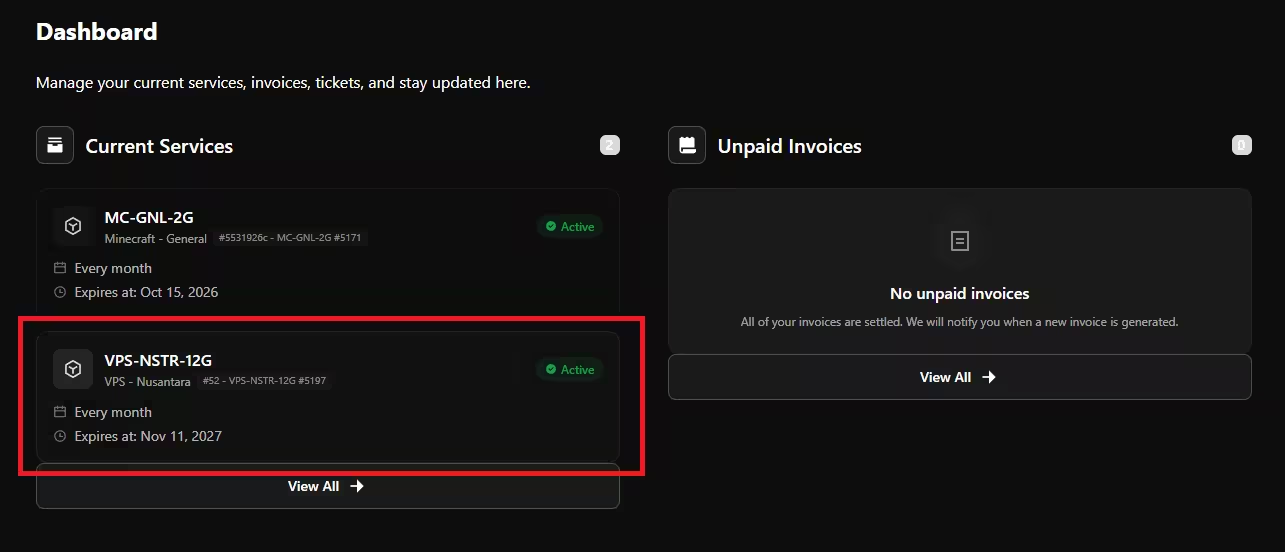
After payment, wait a moment until the server status becomes Active, then click the VPS that is now active.
Go to the VPS Console
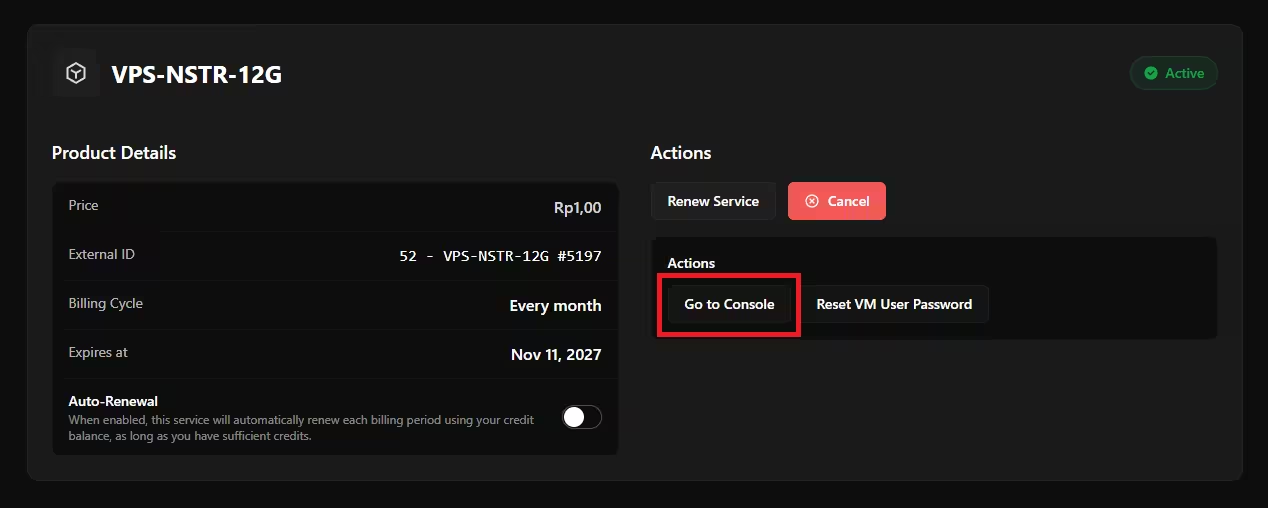
Click Go To Console on your VPS!
Install the OS
You can choose the OS depending on your needs, either Windows or Linux. Click the OS you want, then check the Installation Summary box on the right to continue.
Once the OS installation is complete, your server's login details (such as the IP Address, Username, and Password) will be sent automatically to the email address you registered with. Make sure to check your inbox or spam folder!
Choose an Access Method
Because a Linux VPS runs without a graphical desktop, you need to control the server remotely. After you receive the IP address and password by email, choose the access method you want to use:
- 🖥️ Access via Terminal / CMD (SSH) (The basic method built into your laptop/PC, ideal if you only want to type commands).
- 💻 Access via Visual Studio Code (Highly recommended! You can edit files, drag and drop like a File Manager, and open a Terminal at the same time in one application).