How to Access a Windows Server VPS (RDP)
Unlike Linux, which only shows black-and-white text (Terminal), a VPS running Windows Server has a visual desktop just like your regular computer or laptop.
To access and control it remotely, we will use the built-in feature called Remote Desktop Connection (RDP).
Here are the steps to access it:
Step 1: Prepare the Login Details (Check Your Email)
Just like the previous procedure, after the Windows Server OS installation is complete, the panel system will send the login details to your email. Make sure you have noted these 3 pieces of information:
- IP Address: The series of numbers for your server address (Example:
103.42.xxx.xx). - Username: The main system user (for Windows this is usually
Administrator). - Password: The random password sent in the email.
Step 2: Open the RDP Application
You do not need to install additional applications if you are using a Windows laptop or PC.
- Click the Start (Windows) button on your computer.
- Type Remote Desktop Connection in the search field, then open the application.
 (Note: If you are using a Mac, please download the official application called Microsoft Remote Desktop from the App Store for free).
Step 3: Start Connecting to the Server
- In the Remote Desktop Connection application window, click Show Option at the bottom left of the RDP application.
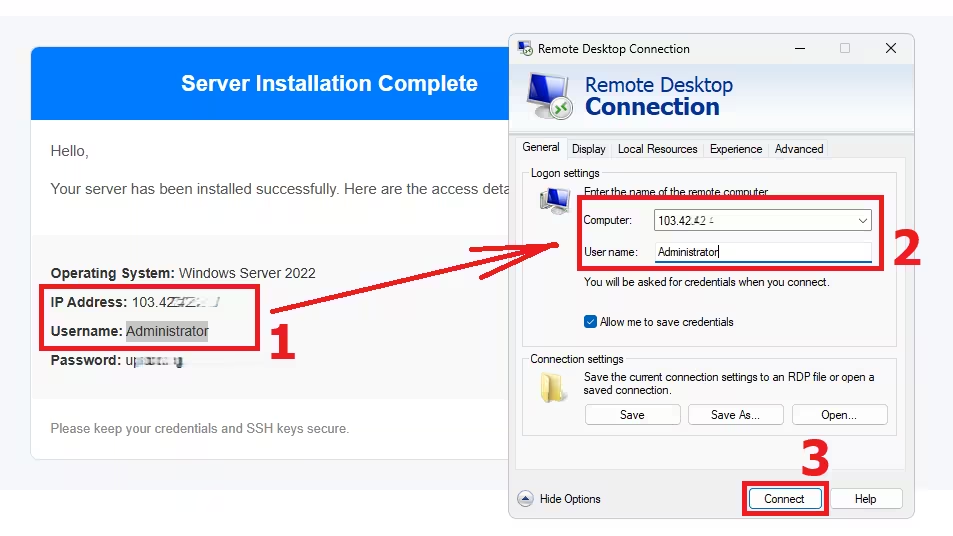
- A new window will appear asking for login information.
- Select the More choices option then Use a different account (if the username is not filled in automatically).
- Enter Username:
Administrator(with a capital A). - Enter Password: (Type or paste the password from your email).
- Click Connect and you will be asked for the Password; just enter it.
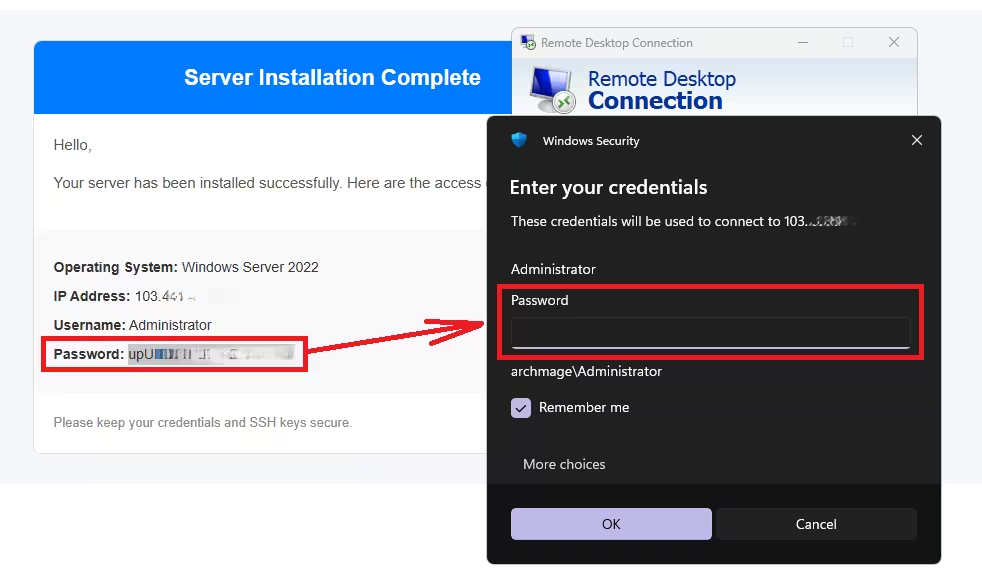
- Usually a certificate security warning will appear saying "The identity of the remote computer cannot be verified". This is normal because the server IP was just created. Just check the "Don't ask me again for connections to this computer" box, then click Yes.
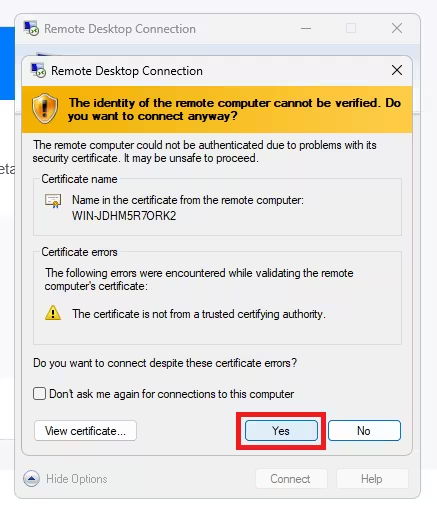
Done! A new window will open and display your Windows Server desktop. You can now operate it using your mouse and keyboard just like a regular computer.