How to Access Hyper Node from Billing
Hyper Node (or Private Node) can be accessed directly from the billing web without needing to log in manually to the panel. The Go to Panel button will create an automatic login session (SSO) and take you to the Hyper Node page.
DON'T KNOW HYPER NODE YET?
Hyper Node is your own VPS that already has the Pterodactyl panel installed. For more details, read Introduction to Hyper Node.
1. Log in to the Billing Web
- Open the Raznar billing web.
- Log in using your account email and password.
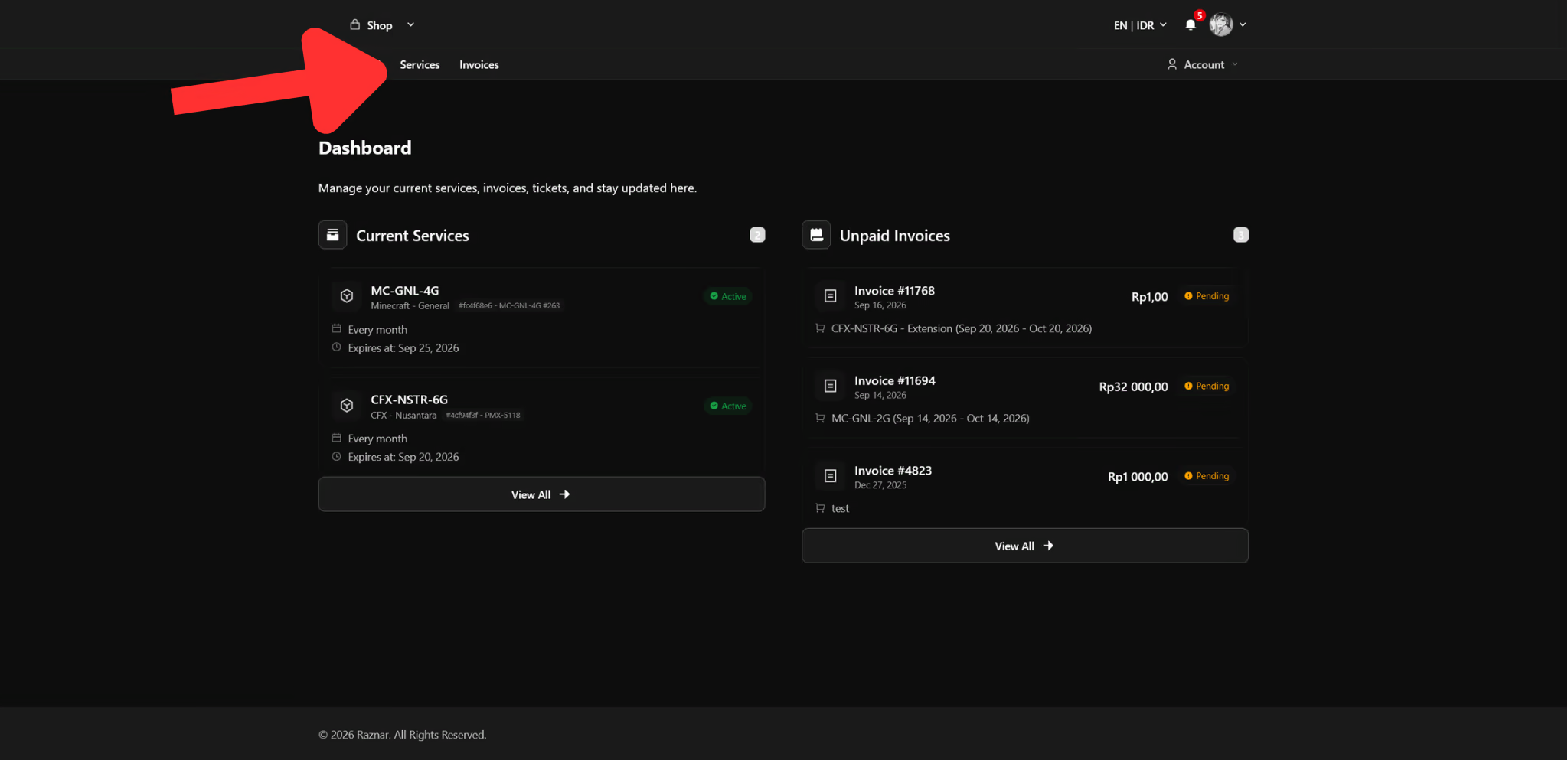
2. Open the Services Menu
- Once logged in, open the Services menu.
- Select your Hyper Node service from the list.
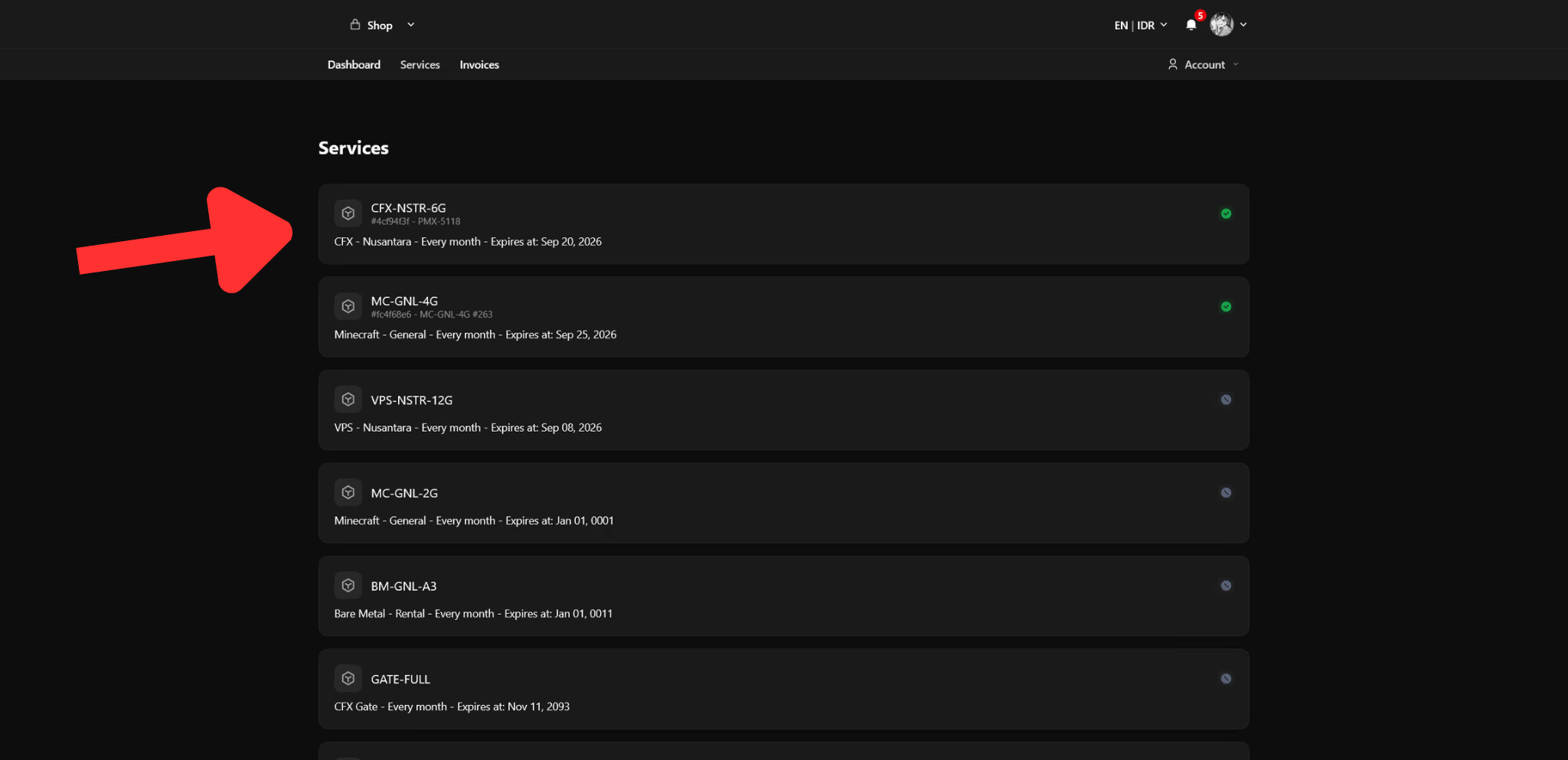
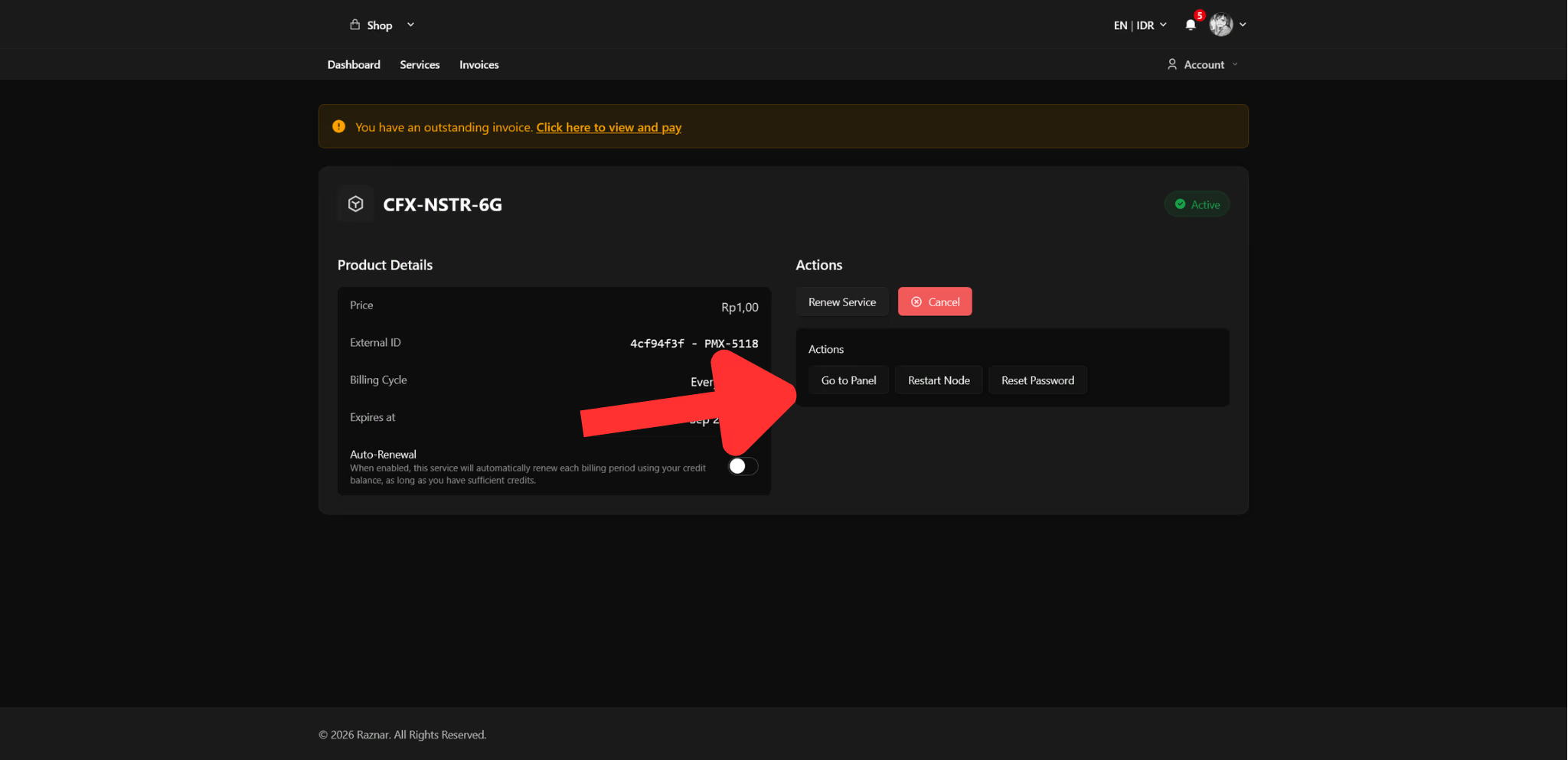
3. Click "Go to Panel"
- On the service page, find the Go to Panel button.
- Click the button.
You will automatically log in (SSO) to the panel and be directed straight to the Hyper Node page at the address:
/hyper-nodes/{id}
4. If You Are Not Redirected Automatically
Some conditions that may occur:
- Already logged in to the panel but not on the Hyper Node page — open the panel manually and go through the Nodes menu, then select your Hyper Node.
- Automatic login (SSO) failed — create/reset the panel password first via Reset Panel Password via Billing, then log in with the same email.
tip
If you still cannot get in, contact the Technician / Hosting Admin via a ticket.
5. After Entering Hyper Node
On the Hyper Node page, the left sidebar contains the Management group:
- Servers — the server list and the button to create a new server.
- Subusers — manage other people's access to the node.
Continue to the following guides: