How to Connect Your Discord Account to the Billing Website
Step 1: Sign In to the Billing Dashboard
- Open your browser and log in to the Raznar billing website as usual.
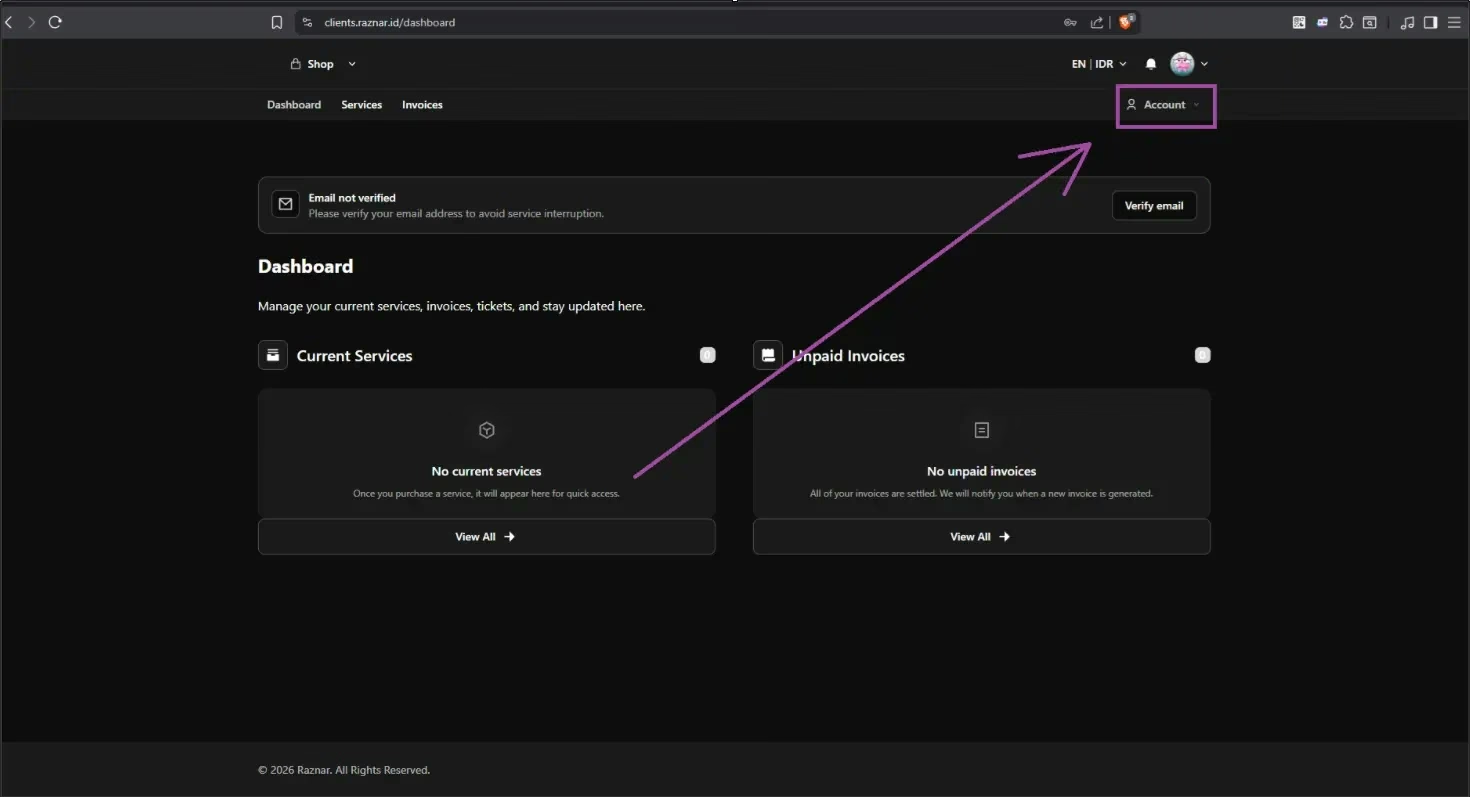
- You will be taken straight to the main page (Dashboard).
- Look at the top-right corner of the screen and click the "Account" menu, right next to the bell icon.
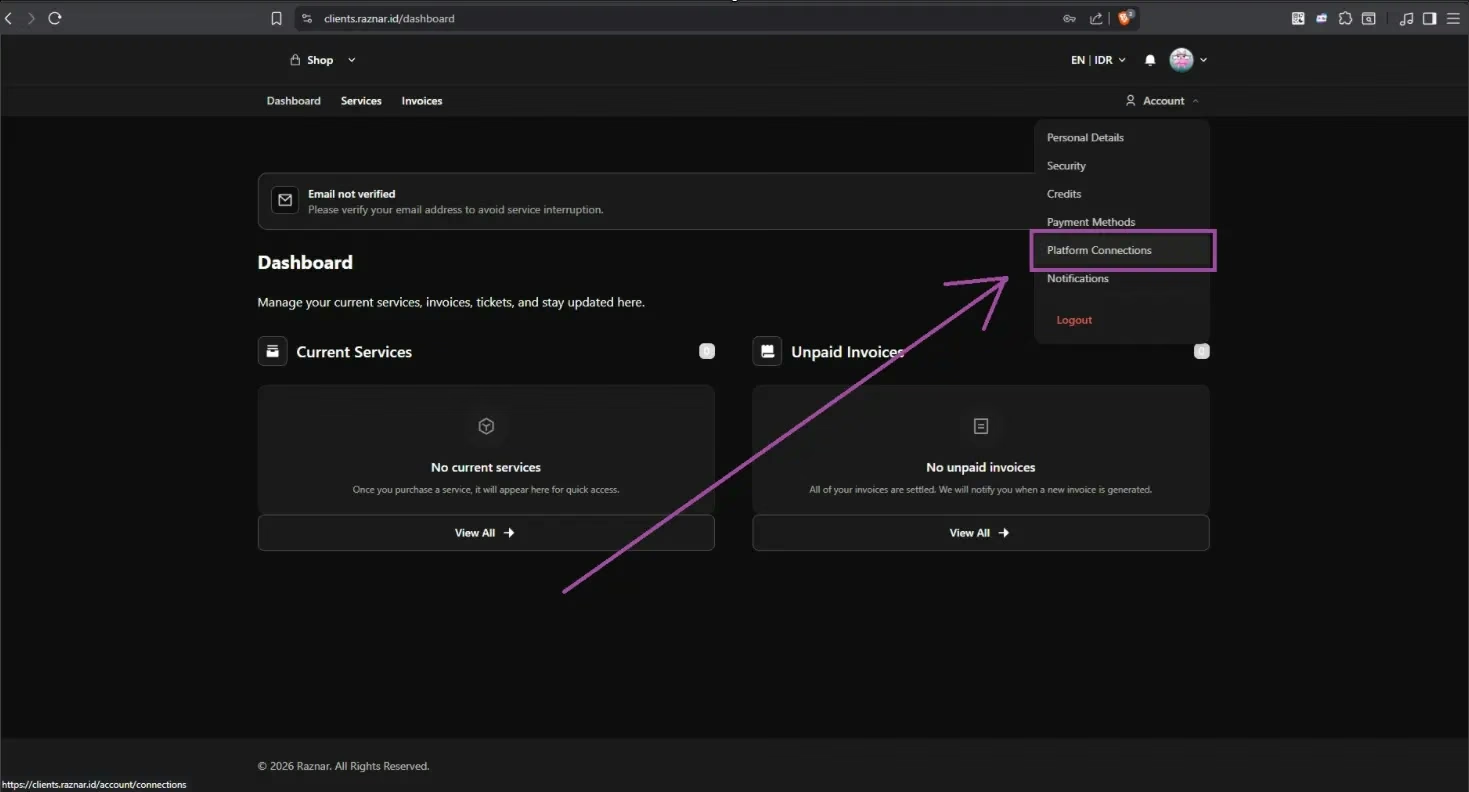
Step 2: Find the Platform Connections Menu
- Once clicked, several menu options will appear. Select "Platform Connections".
Step 3: Click Connect Discord
- On the Platform Connections page, you will find the option to link your account.
- Look for the "Discord Connection" section.
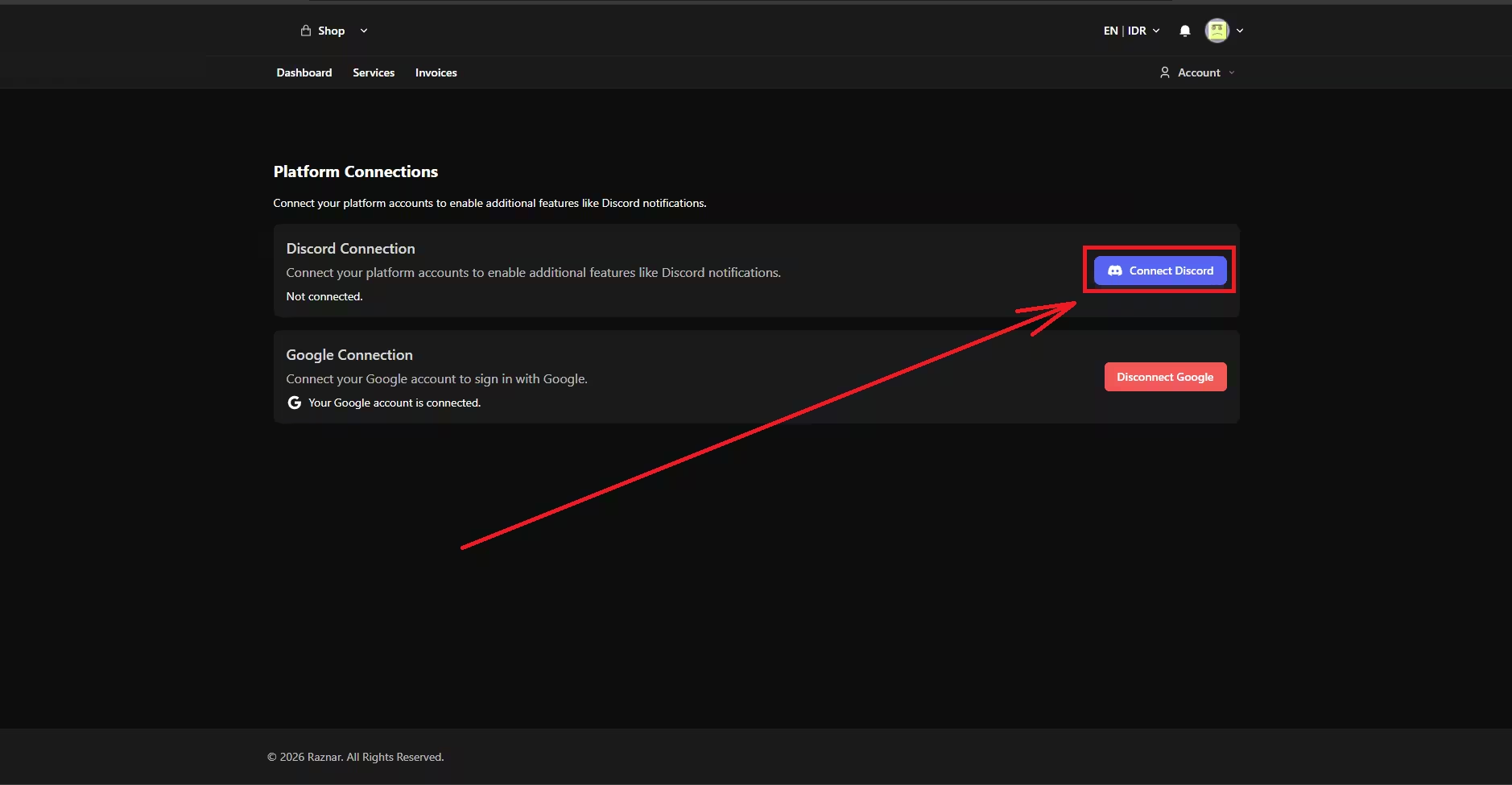
- Simply click the blue "Connect Discord" button on its right.
Step 4: Log In to Your Discord Account
- After clicking, the system will automatically open Discord's official login page.
- Just click authorize to connect your Discord account to Raznar.
- Done! You will be returned to the billing website and the status will now show as connected (Connected).