How to Upload/Download Files on the Server

If you are buying a server for the first time, make sure you have set or reset your panel password first. If you haven't, you won't be able to log in to this SFTP.
👉 Check how to do it here: How to Reset Panel Password via Billing
What is FileZilla (SFTP)?
FileZilla is an application used to quickly upload and download files, directly connecting users with the file server to local storage.
Why is FileZilla needed?
FileZilla makes the process of uploading and downloading large files efficient, especially since the web panel has a maximum upload/download limit of 100 MB.
Tutorial on using FileZilla
Before the steps, make sure FileZilla is installed. If not, you can install it first via the Official FileZilla Website
1. Open the Site Manager
After installing, open the FileZilla software on your respective device, open FileZilla then click "Open the Site Manager" in the top left

2. New Site
Click the "New Site" part to add a site or SFTP destination

then change the protocol to SFTP

3. Connect to the server
Open the Settings option on the panel then match the Host, Port, and User to your own server
HERE IS AN EXAMPLE
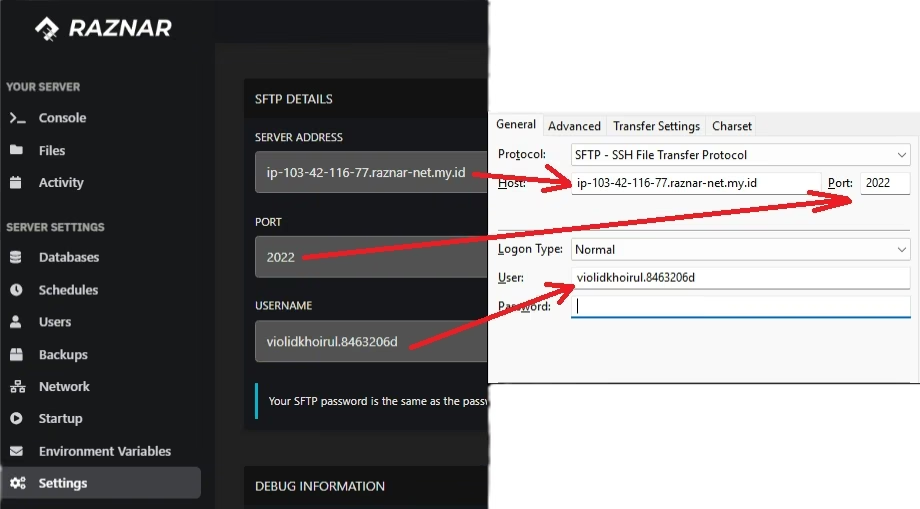
Password uses the Panel Password
Once you feel it's correct, you can click "Connect" to the server then click "OK"
If the panel password is wrong, you can try to recreate or reset it.
If the connection succeeds, the success view will look like this
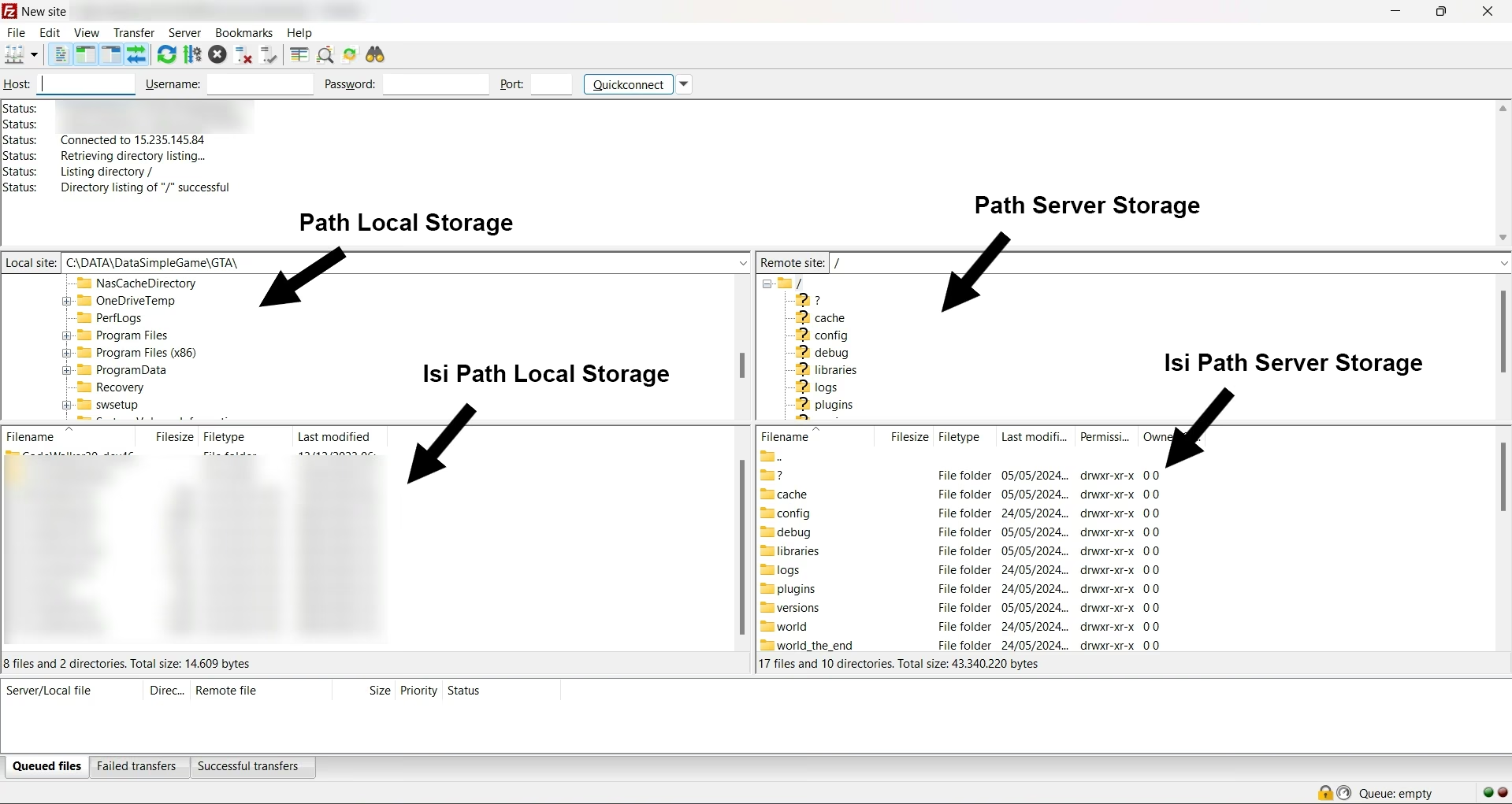
4. Transfer Files to the Server
For downloading, users can choose the Local Storage Path to be used for placing files and drag & drop files from the Server Storage Path contents to the Local Storage Path contents. For uploading, users can choose which file to upload to the Server Storage Path then drag & drop
Note
SFTP can be used for all types of servers such as FiveM, Minecraft, Terraria, Rust, Valhiem, Unturned, SA:MP, and Palword